Website guidesProduct guides
How to edit your website without breaking the design
Edit your generated website with confidence. Change text, photos, colors and sections, set the inquiry email, then save and check each screen size.


The short answer
How to edit your website without breaking the design
To edit your generated website, open its saved preview and choose **Edit website**. Select text or an image on the page, use the editing panels for colors and sections, then choose **Save changes**. Check Desktop, Tablet and Mobile before downloading. The form’s delivery email has its own setting under **Forms**.
What to remember
- Review the full page before making changes so you know which sections to keep.
- Use Layers, Add, Photos, Theme and Forms for different jobs.
- Save deliberately. Changing the preview is not the same as saving the website.
My recommendation: Edit one part at a time, save the change and check desktop and mobile previews. Keep a downloaded copy before making large structural changes.
- Review the full page before making changes so you know which sections to keep.
- Use Layers, Add, Photos, Theme and Forms for different jobs.
- Save deliberately. Changing the preview is not the same as saving the website.
- Test inquiry delivery on the published website, not inside the editor.
This guide follows the current Website Studio controls. It applies to ready-made templates and generated roofing or HVAC websites. For the steps before the editor, use our website creation guide.
Where are the editing tools?
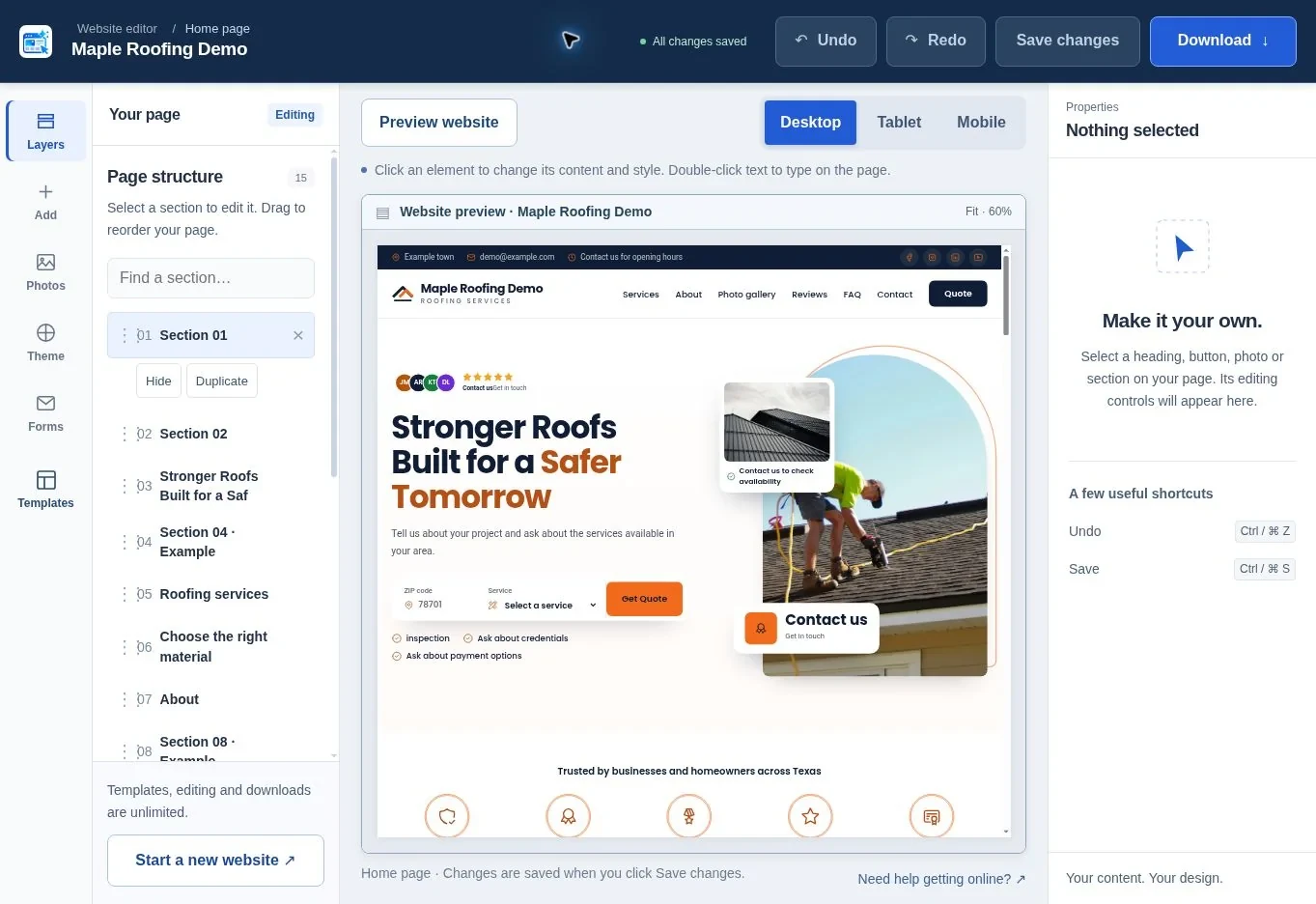
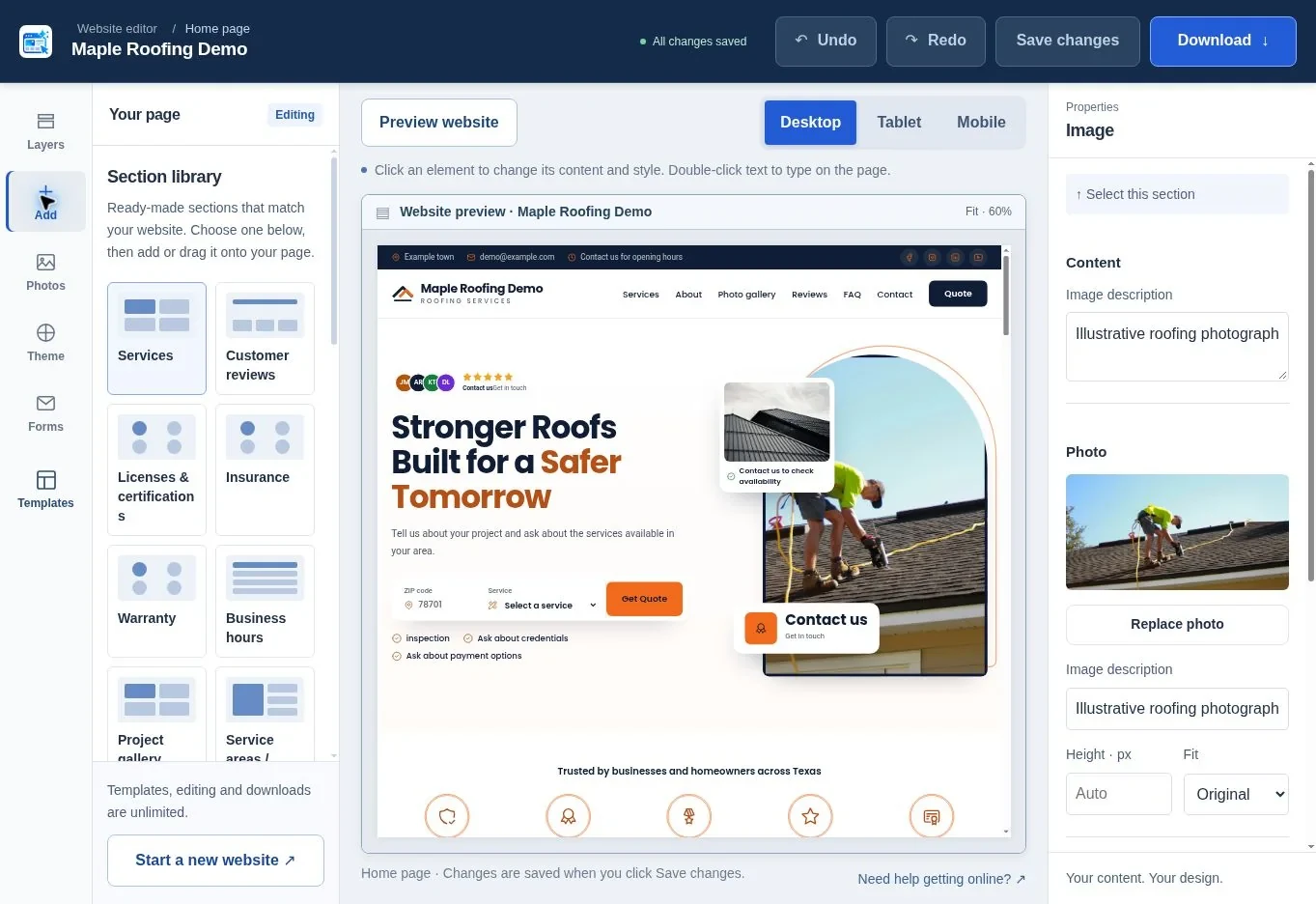
The editor keeps page controls separate from the website itself. The top area contains Undo, Redo and Save changes, while the side tools manage content and layout. Properties shows controls for the selected element.
| Control | Use it for | Check afterwards |
|---|---|---|
| Layers | Find, reorder, remove or restore sections | Navigation and page flow |
| Add | Insert a prepared section | Its content and relevance |
| Photos | Replace images and add descriptions | Crop on smaller screens |
| Theme | Change accent, dark and background colors | Text and button contrast |
| Forms | Set the inquiry destination | Saved email and live delivery |
| Properties | Edit selected text, links and supported styles | The actual element you changed |
Click an element to select it. Double-click text if you want to type directly on the page. If a small item is difficult to target, use the section list and the selected-element controls rather than repeatedly clicking the canvas.
Which editing changes deserve another check?
WebAIM’s 2026 automated million-homepage audit found low-contrast text on 83.9% and missing form labels on 51%. Source: WebAIM Million 2026.
Retest contrast after changing colors and retain visible labels when editing forms. These are practical checks for your page, not a score assigned to this editor.
What contrast should your design preserve?
W3C’s text-contrast standard uses 4.5:1 for ordinary text and 3:1 for large text. Large text generally means at least 18 points, or 14 points when bold. These are design requirements, not conversion statistics. Check the actual foreground and background colors after editing a template. Source: W3C WCAG 2.2: Contrast (Minimum).
How do you change words without damaging the layout?
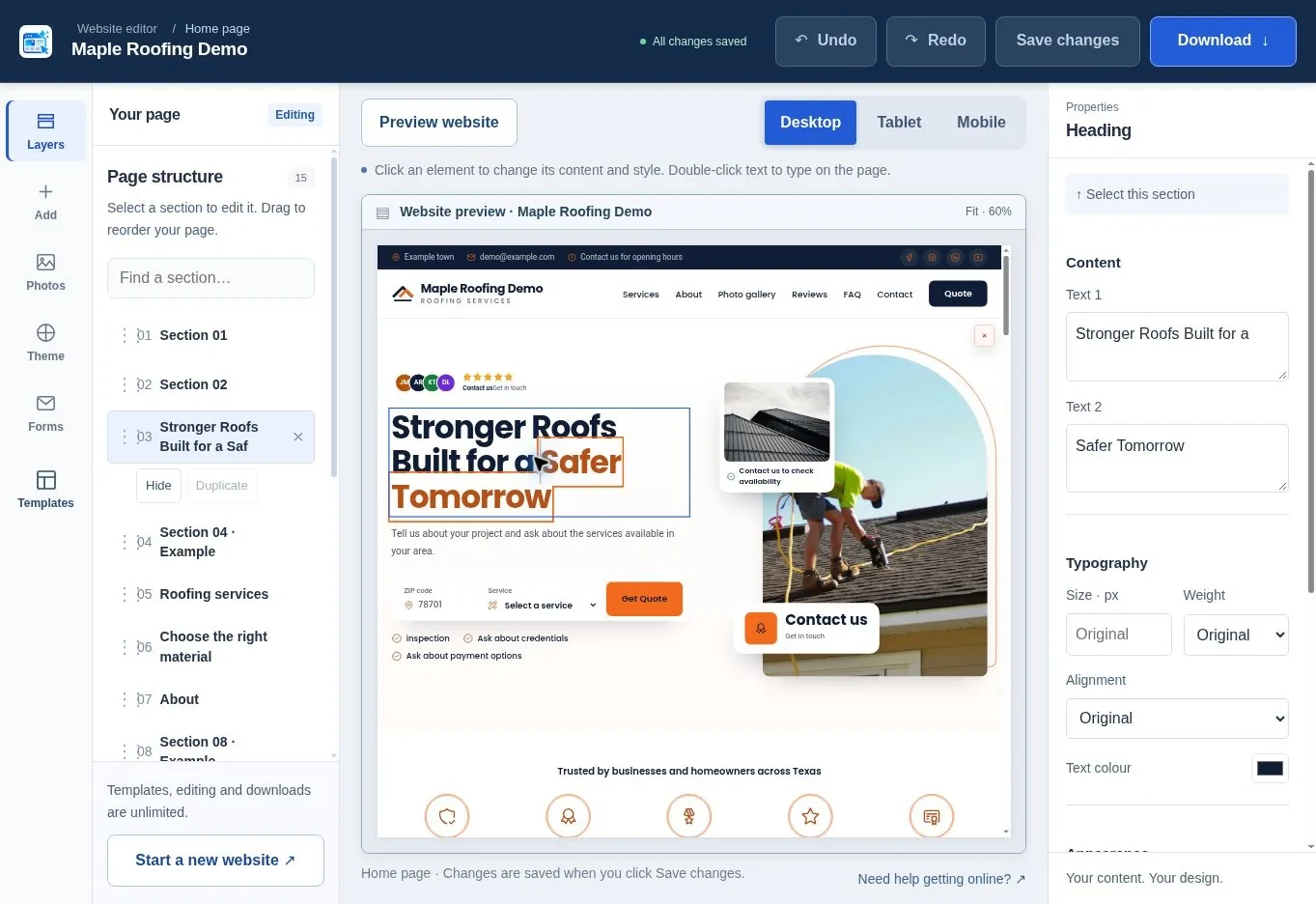
Edit the existing text first and keep a similar visual length until you have checked the result. A long business description rarely belongs in the main headline; put the detail in the introduction or About section instead.
Work from the header to the footer. Change the business name, headline and main contact button, then services, projects, reviews and contact details. This catches repeated phone numbers and old demonstration names that are easy to miss when editing randomly.
For a roofing headline, “Roof repairs and replacement in Austin” gives a customer more useful information than “Quality you can trust.” For HVAC, “Heating repairs and air conditioning installation in Phoenix” explains the work. These are wording examples, not claims about a particular business.
Select links separately and check their destination. A button labeled Call us should use your phone number, and Get a quote should reach the intended contact form or section. Changing visible words does not automatically prove that the link underneath is correct.
How do you replace photographs and logos?
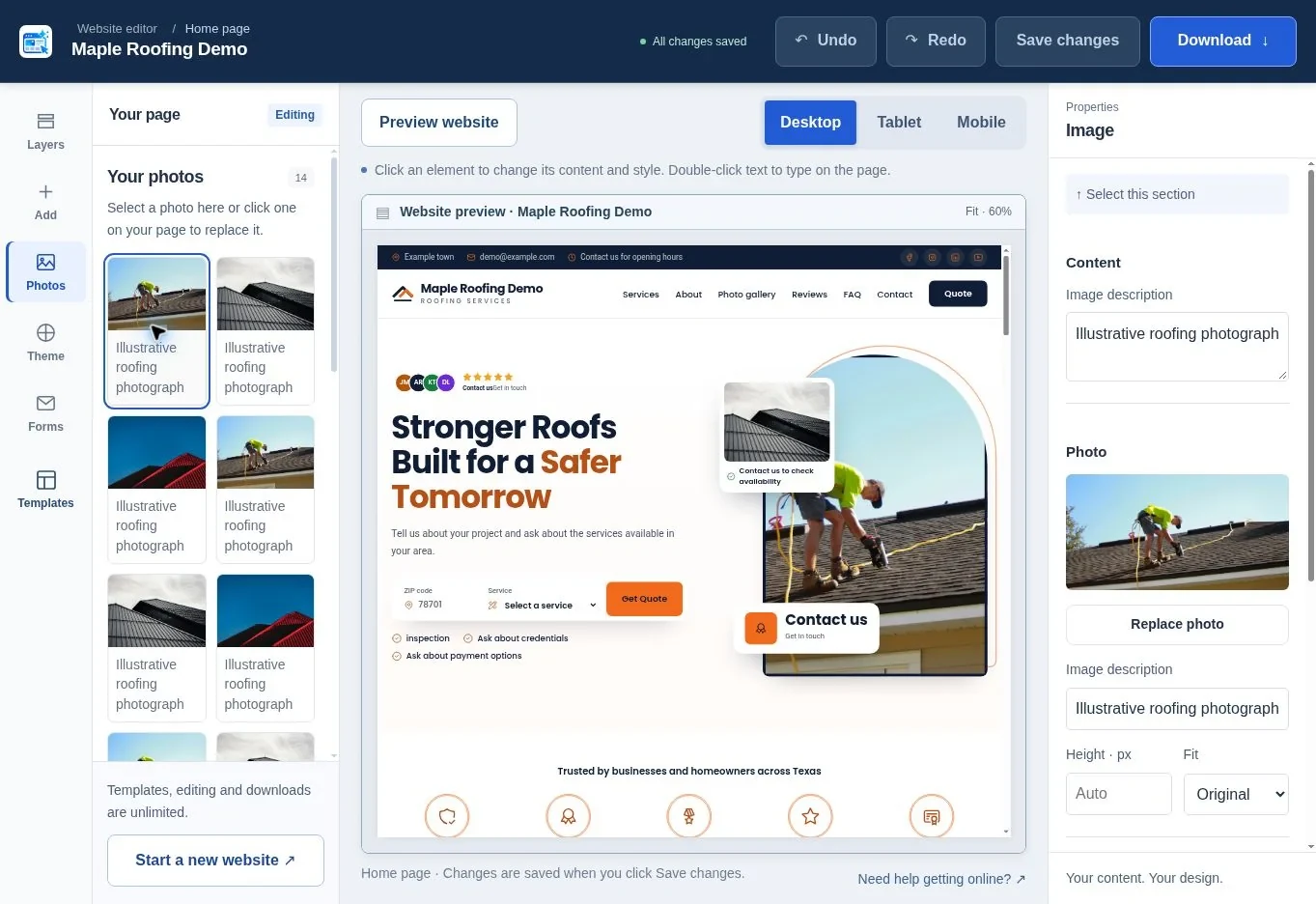
Open Photos, choose the image and select Upload replacement, or select a photograph on the page. Add an image description that says what the picture shows. The current replacement control accepts JPG, PNG or WebP files up to 8 MB.
Use real work where you have permission to show it. Choose an overall view for a project card and a closer view when explaining a detail. Do not caption a stock photograph as one of your completed jobs. A simple equipment photograph can be more useful than a busy team image if the section explains that equipment.
Check cropping after each replacement. A tall photograph inserted into a wide hero will lose part of the original view. Keep the subject away from the edge, or choose a better-shaped source image. Avoid stretching a logo to fill a photograph-sized space.
The logo is best added during the initial setup when you have a suitable file ready. If you replace it later, check both the header and footer; a dark logo can disappear on a dark background. See making a generated website look like your business for more practical examples.
How do you change colors and text styling?
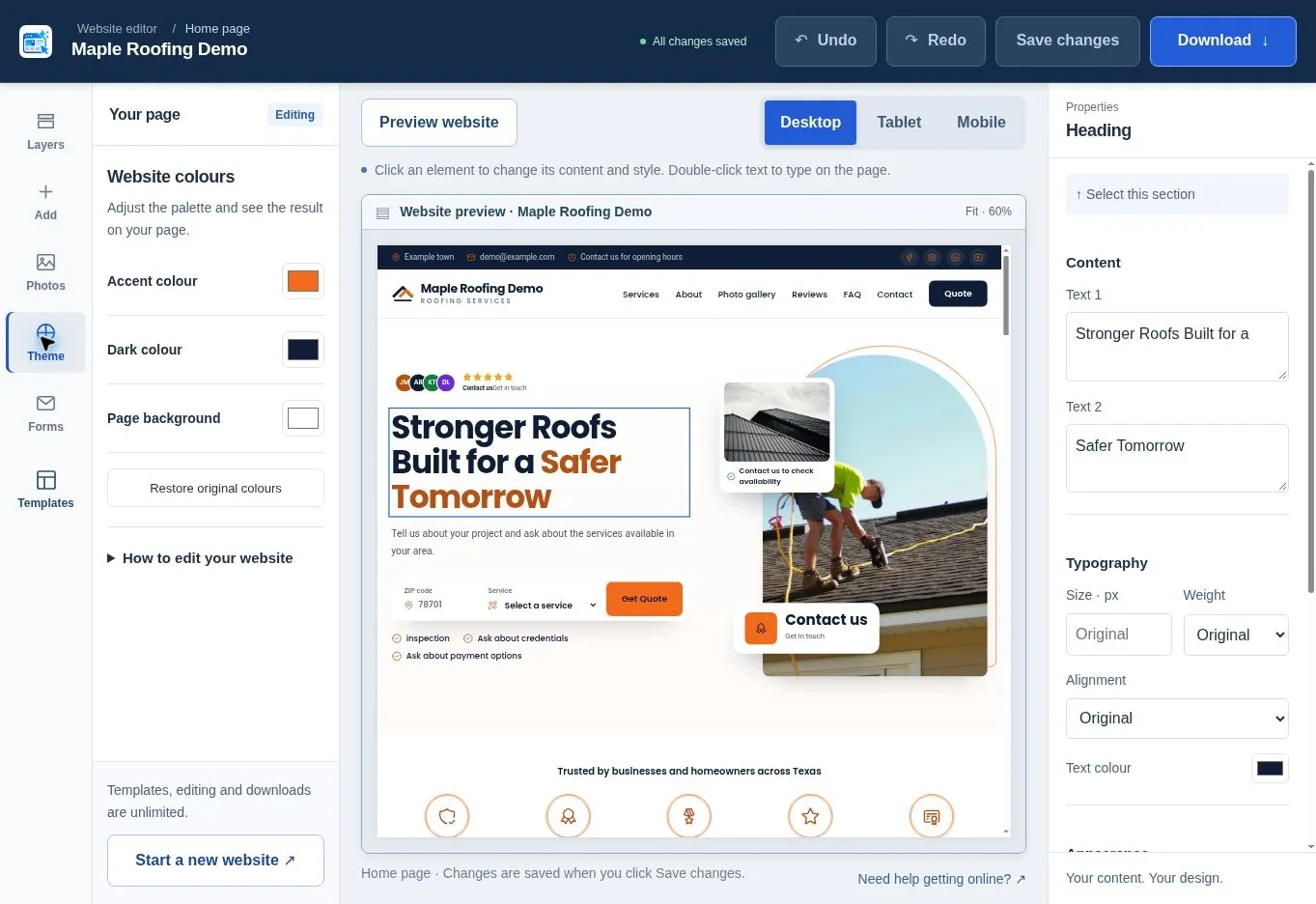
Open Theme to change the accent color, dark color and page background. Use Restore original colors if the new combination makes the page difficult to read. Check the whole website after a palette change because the same color may appear in several sections.
Reserve the strongest accent for the main action and a few supporting details. If every heading, border and photograph tint is equally bright, the contact button becomes harder to find. Check small footer text and form labels as carefully as the hero.
For selected text, Properties provides size, weight, alignment and text color controls. Increase a heading only after checking how it wraps on a phone. The current interface does not show a global font-family picker, so this guide does not promise one. Choose a template with a suitable type style, or discuss a wider typography change as custom work.
The W3C contrast guidance uses a minimum 4.5:1 contrast ratio for normal text and 3:1 for qualifying large text. Check the actual foreground and background pair; a blue button is not automatically readable just because blue is your brand color.
How do you add, move or remove sections?
Use Layers to change the order and Add to choose a prepared section. The section library supplies a starting design and content, but you still need to check that the claims apply to your business.
- Find the section in Layers, using Find a section if needed.
- Drag it to the intended position.
- Open Add for a missing section, such as a gallery or FAQ.
- Check the preview and edit the section text.
- Add it to the page, then save.
Remove a section when you have nothing useful or accurate to say there. An unsupported financing claim or a review that belongs to a demonstration business should not survive merely to fill space. Removed sections can be restored through the editor while you work.
Do not add a second contact form just to make the page longer. A helpful process explanation, recent project or specific FAQ may answer a question the existing page leaves open. If the design itself is wrong, compare another roofing template or HVAC template before spending time changing every section.
How do you update contact details and save safely?
Check the visible contact information and the inquiry destination separately. In Forms, enter the receiving address in Send inquiries to and save. Updating the email printed in the footer alone does not change this setting.
Use Undo and Redo to step through recent changes. The editor also displays a save status. Wait for the saved confirmation before closing the page, changing designs or downloading. Keep an earlier downloaded ZIP if you want a separate recovery copy outside the editor.
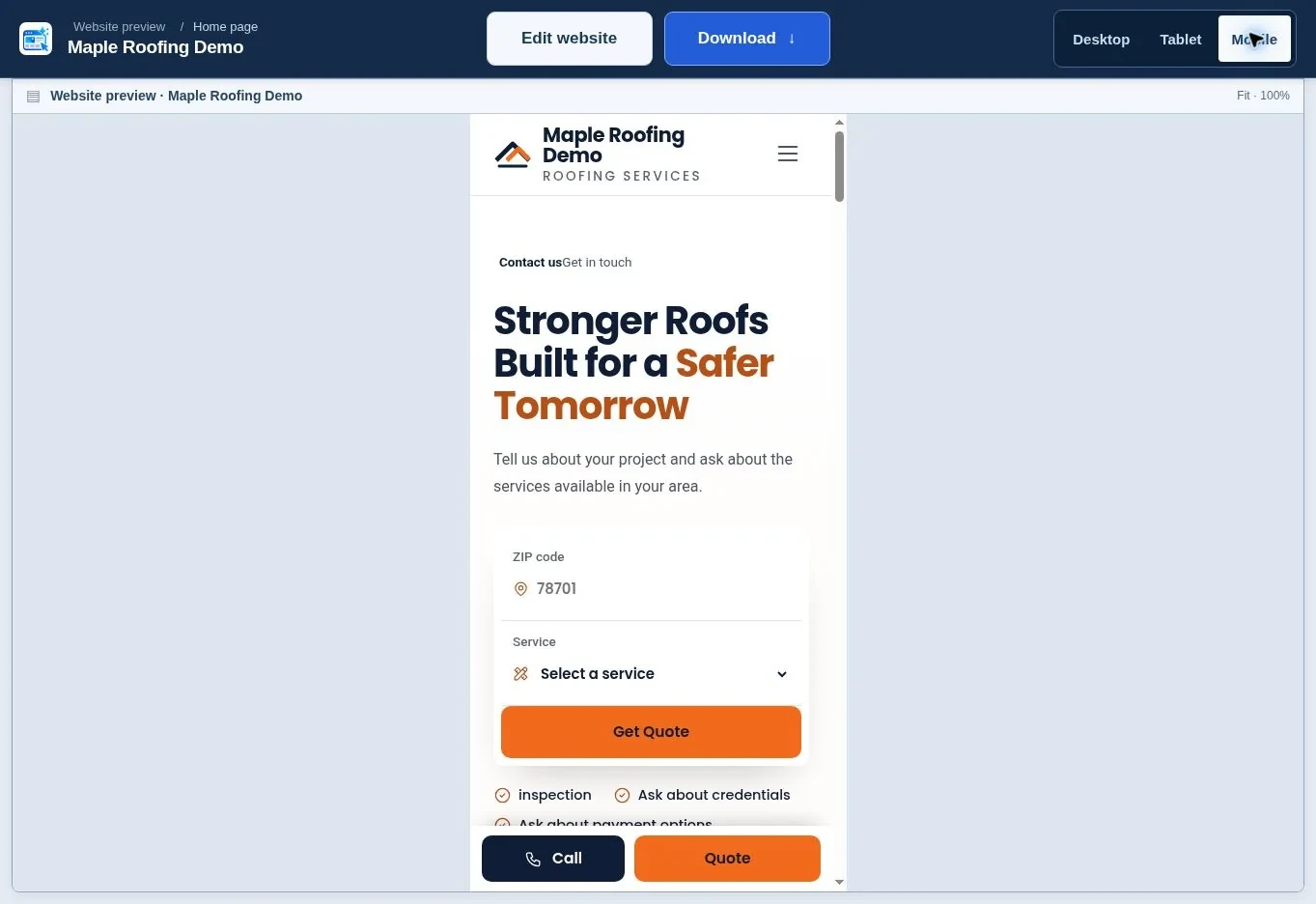
Then choose Preview website and test the three screen-size controls. Read the page from top to bottom at each size. Check long service names, image crops, buttons, menus and any FAQ accordions. A real-phone check after publishing is still worthwhile because an editor preview cannot reproduce every browser condition.
When you are satisfied, use the publishing guide to choose a host or request launch help. Start from the roofing generator or HVAC generator if you need a new project rather than changes to this one.
What should you check before leaving the editor?
Save the page, read it on mobile and verify the contact information one last time. Keep only genuine reviews and business claims, use photographs you can publish, and confirm the form destination. Those checks matter more than adding another animation. Download the saved result when you are ready to move on.
Frequently asked questions
Why does the preview form not send an inquiry?
Forms are intentionally inactive inside the editing preview. That lets you review the design without sending test leads from the canvas. After publishing, the included endpoint needs compatible PHP hosting, outgoing mail and form-security configuration. Submit a live test and confirm receipt in the destination inbox before advertising the site.
Will editing use one of my five generation requests?
No. Editing saved content, changing colors, replacing images and downloading do not use the AI allowance. Requesting another generated design does. Ready-made template use remains unlimited, so first try targeted edits or another template if the current page is close to what you want.
Can I change my template from the editor?
Yes. The editor has a Templates control for the available industry catalogs. Review the design before applying it and check the resulting content afterwards. Save or download a copy of work you want to keep before making a substantial change; do not assume every layout-specific edit transfers unchanged.
Can I remove and restore a section?
The Layers panel supports removing detected sections and lists removed sections that can be brought back while editing. Restore a section if it contains content you still need, then check its position. Save and inspect the preview again so the final page order matches your intention.
Why is a photograph cut off on mobile?
The design may crop a wide image differently inside a narrow card. Use a source photograph with room around the important subject, or adjust the available image controls and check all preview sizes. Stretching the image usually makes the result worse; a better crop or replacement is preferable.
Does a shareable preview update every time I edit?
Treat the shareable preview as a saved copy, not a live connection to your editing session. Open the exact link you plan to send and check its content before asking for approval. Keep the private editor link separate and follow the download flow if you need a newer shared preview.
Sources & further reading
Sources checked .
- Website Generator Hub product FAQ (opens in a new tab)websitegeneratorhub.com
- Website Generator Hub terms (opens in a new tab)websitegeneratorhub.com
- WCAG 2.2 Understanding Contrast Minimum (opens in a new tab)www.w3.org
- WebAIM Million 2026 (opens in a new tab)webaim.org