Website adviceBusiness website guides
20 roofing website examples to inspire your next site
Compare 20 roofing website template examples, from photo-led openings to clear quote forms. Preview each design and find a layout that fits your business.

The short answer
20 roofing website examples to inspire your next site
These 20 roofing website examples are editable template demonstrations from WebsiteGeneratorHub, not a ranking of live roofing companies. They show different ways to arrange headlines, photographs, services and contact actions. Use them to choose a layout that fits your content, then replace all demonstration business details before publishing.
What to remember
- Choose a composition that works with the photographs you actually have.
- Compare the contact journey and mobile view, not just the opening image.
- Treat sample reviews, credentials and statistics as demonstration content.
My recommendation: Shortlist three layouts by how they present your real projects and services. Choose the one that needs the fewest structural changes, then replace its demonstration claims before launch.
- Choose a composition that works with the photographs you actually have.
- Compare the contact journey and mobile view, not just the opening image.
- Treat sample reviews, credentials and statistics as demonstration content.
- A visual review does not prove that a design produces more leads.
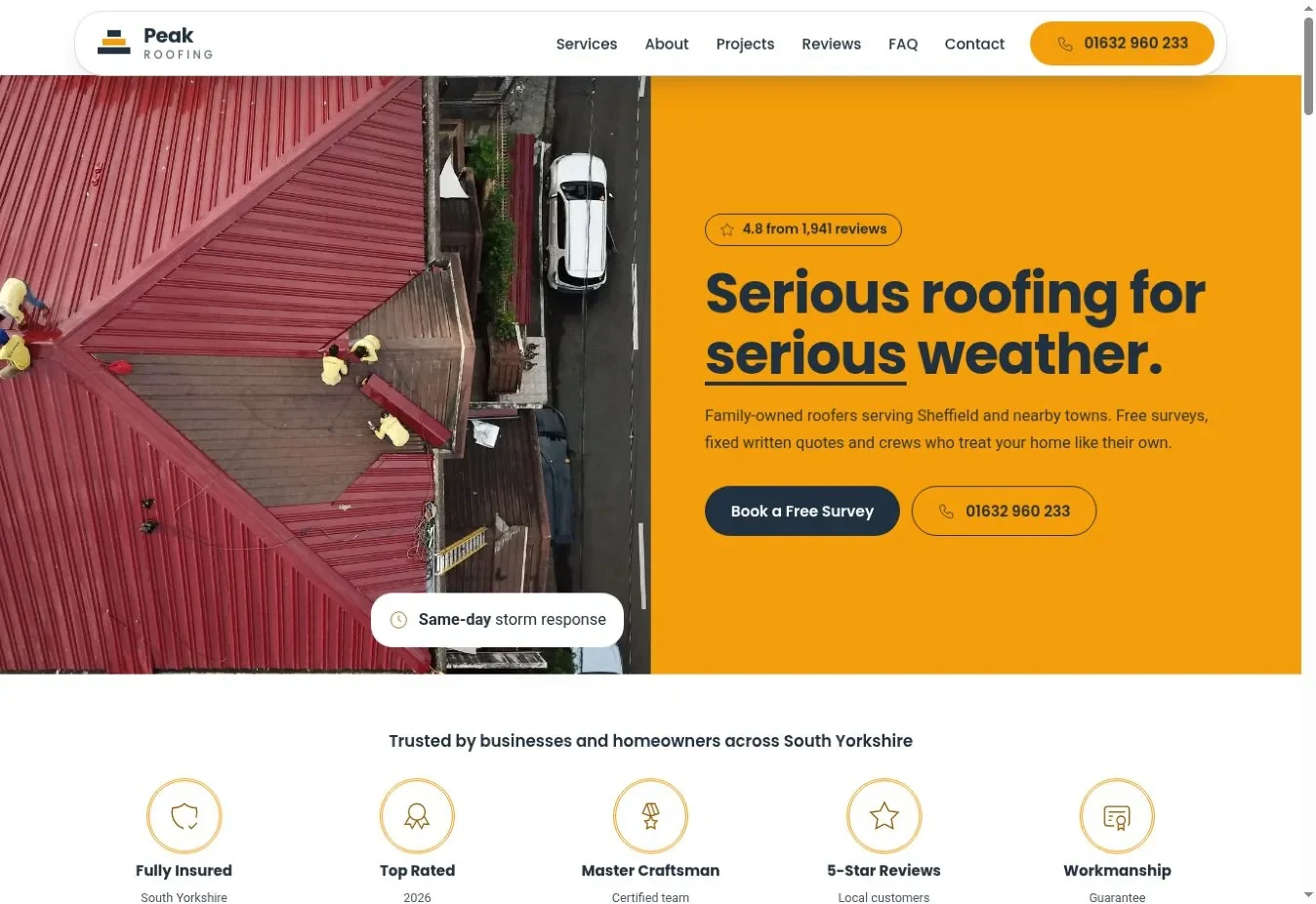
Each example below links to its full preview. The screenshots show the actual bundled template designs. The “best for” labels are editorial suggestions about layout, not measured conversion results.
How should you compare these roofing website examples?
Start with your business content, then compare the layout that presents it most clearly. A photo mosaic needs several suitable images. A statistics-led hero needs real statistics.
| If you have | Look for | Check before choosing |
|---|---|---|
| One strong finished-roof photo | A split hero or framed image | Mobile crop and headline contrast |
| Several good projects | A mosaic or slider | Captions, image loading and navigation |
| Frequent repair inquiries | A visible call action or request block | Whether the form actually delivers |
| A recognizable crew | Worker or team imagery | Permission, names and current roles |
| A distinctive brand | A restrained color-panel treatment | Readability in every color state |
For functional requirements beyond appearance, use the 15-point roofing design checklist. W3C's preliminary accessibility checks provide another useful way to assess a page without relying on taste alone.
What should you check beyond the template screenshot?
WebAIM’s February 2026 automated audit found missing image alternative text on 53.1% of one million homepages. Among images with alternative text, 10.8% had questionable or repetitive wording. When comparing roof-photo galleries, check image descriptions as well as their appearance. Source: WebAIM Million 2026.
Inspect image descriptions, contrast and field labels in the full preview. This audit covers popular homepages generally, not the twenty roofing examples below.
What contrast should your design preserve?
W3C’s text-contrast standard uses 4.5:1 for ordinary text and 3:1 for large text. Large text generally means at least 18 points, or 14 points when bold. These are design requirements, not conversion statistics. Check the actual foreground and background colors after editing a template. Source: W3C WCAG 2.2: Contrast (Minimum).
Which layouts make a useful first impression?
These ten examples use different balances of photographs, headings and contact information. Compare the treatments against your actual content.
1. Aurora
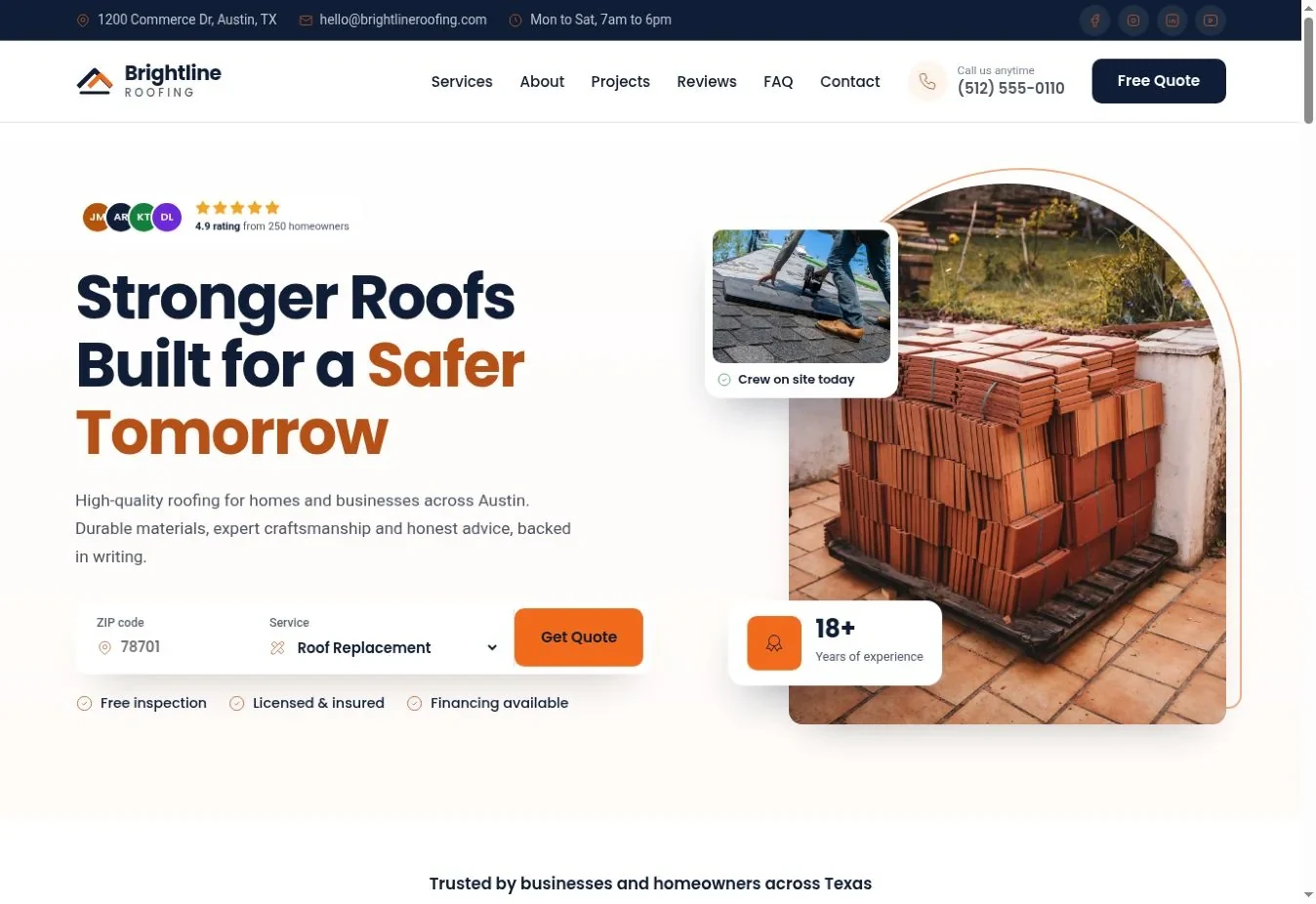
Best for: a small residential crew. Aurora gives the opening a clear division between the message and an arched photograph. The light background lets the orange action color do a specific job. Choose it when you have one strong finished-roof image and want the page to feel approachable. Its materials and trust-badge sections give you places to explain actual options and credentials.
Replace the demo photograph with a crop that still shows the roof inside the arch. Open the Aurora preview.
2. Granite
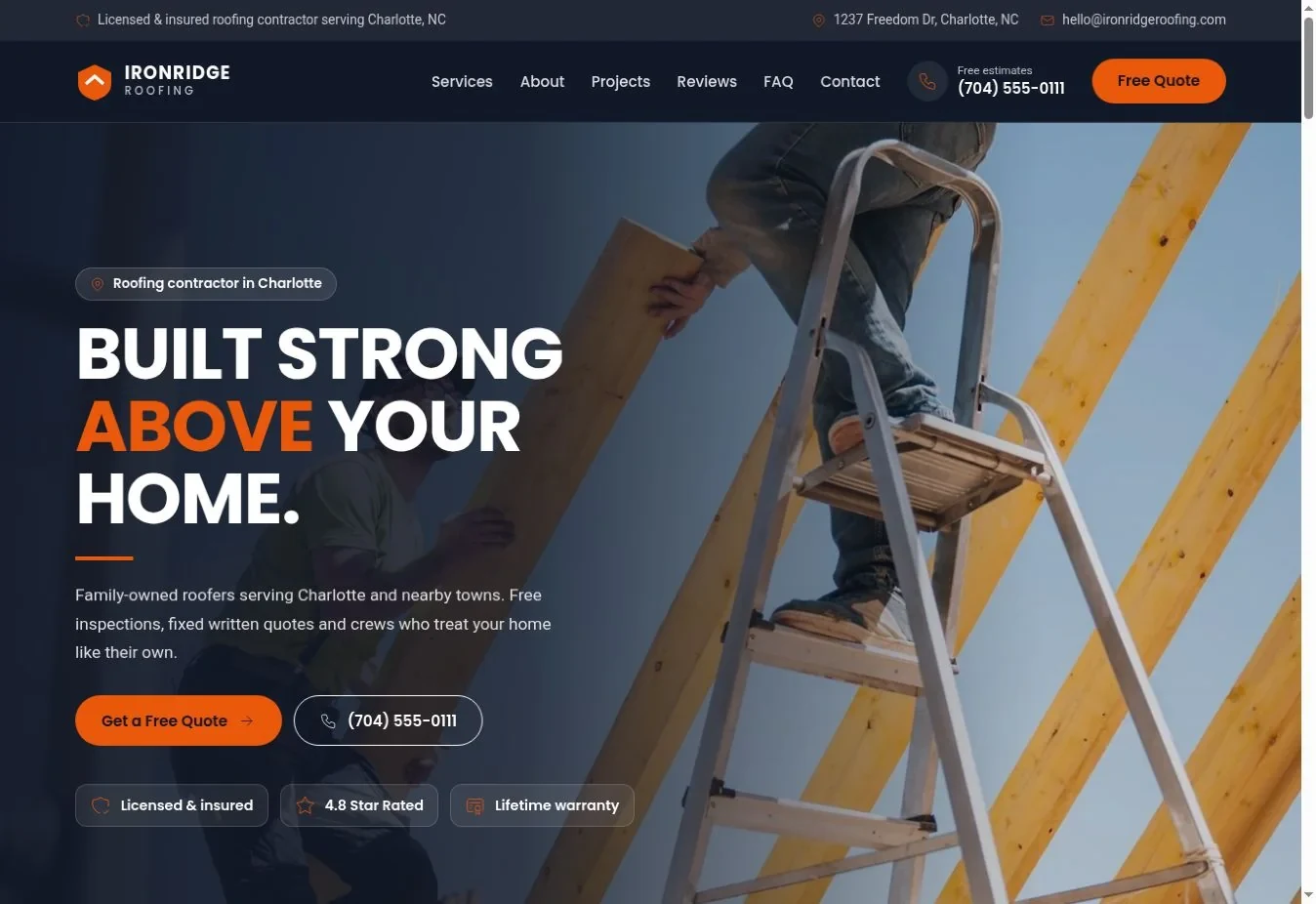
Best for: repair inquiries. Granite pairs a dark opening with a request bar, making the contact route part of the first impression. The orange accent separates actions from the darker surroundings. The team section can make a small business feel identifiable, provided the names and photographs belong to your staff.
Keep the request bar short; collect the rest of the job detail in your follow-up. Open the Granite preview.
3. Summit
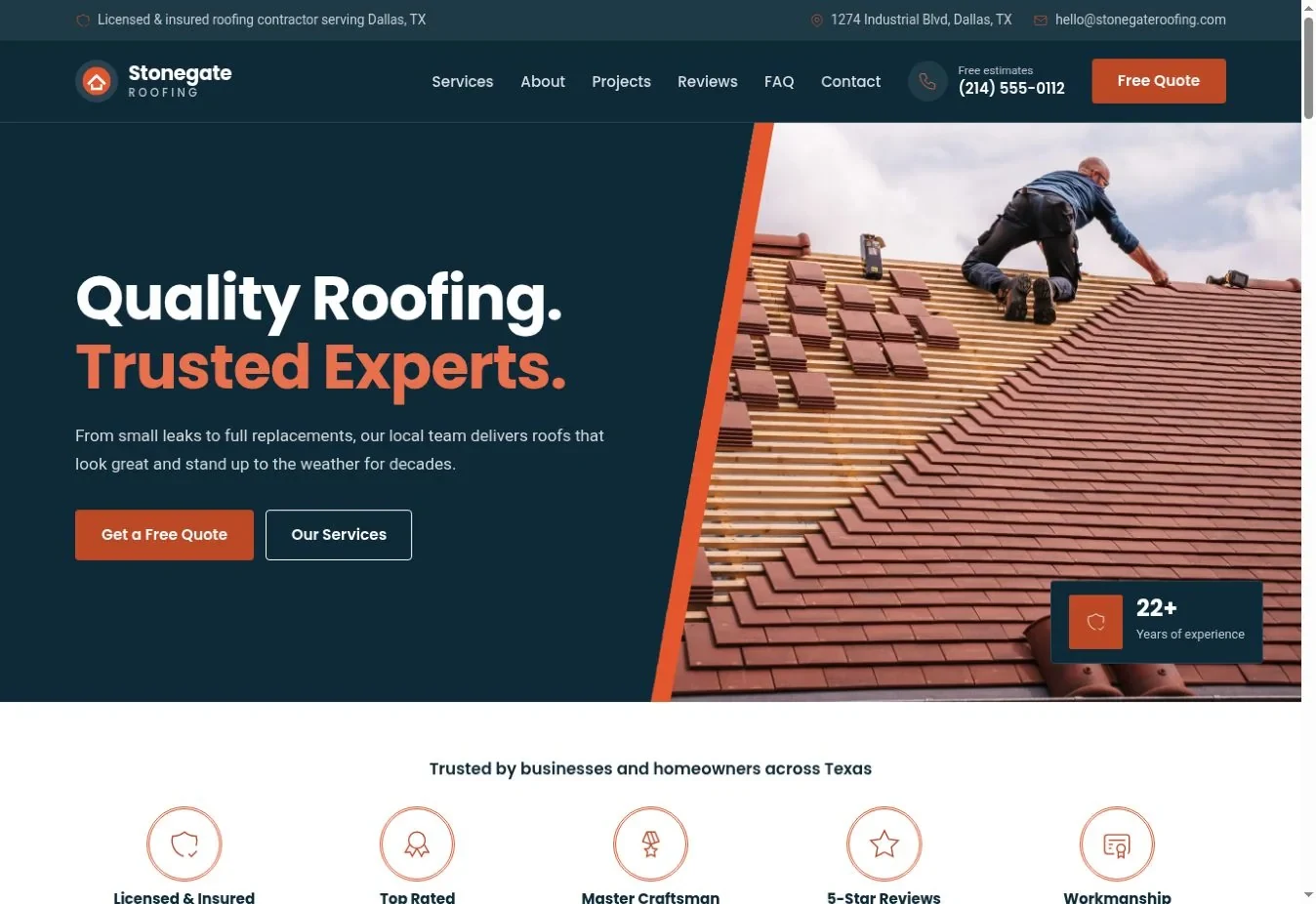
Best for: a bold project-led business. Summit uses a diagonal split rather than a standard rectangular photo block. Its dark header and footer keep the visual treatment consistent. The slider can carry several relevant project images without turning the opening into a tall stack. This is a useful option when your photographs have strong subjects and room for cropping.
Check the diagonal crop on a phone before deciding which image to use. Open the Summit preview.
4. Harbor
Best for: an established local team. Harbor uses a rounded photo card and a light opening. Its materials, team and location-related sections suit a business that wants to explain who will do the work. Light footer cards continue the open feeling.
Remove any map or team block that you cannot populate with accurate information. Open the Harbor preview.
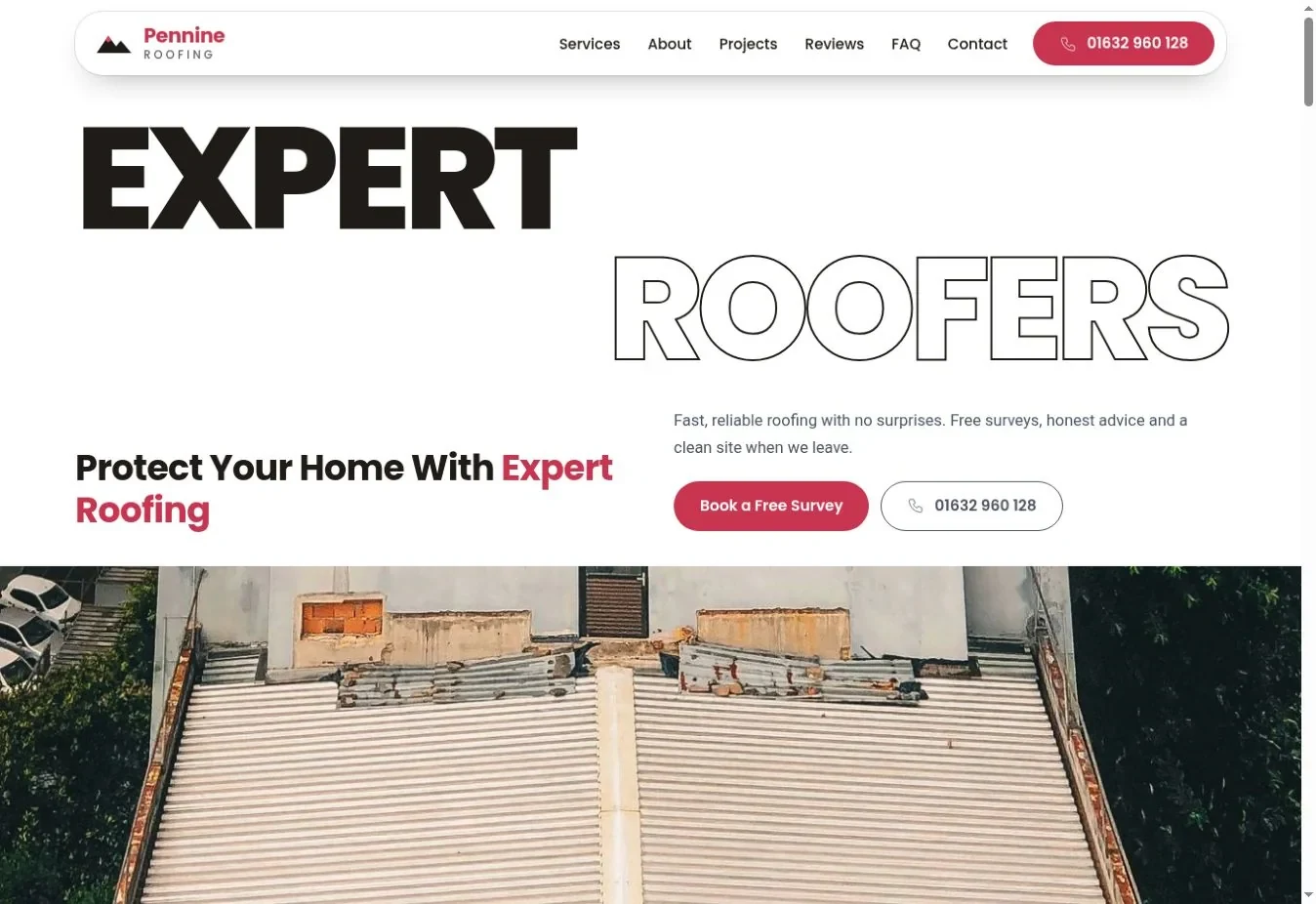
5. Cobalt
Best for: a simple, confident message. Cobalt gives the headline more visual weight and uses a floating navigation treatment. This can work when the business promise is short and specific. A long slogan will fight the design. Team and location sections lead to a dark closing contact area.
Write the headline in ordinary language before judging the large type. Open the Cobalt preview.
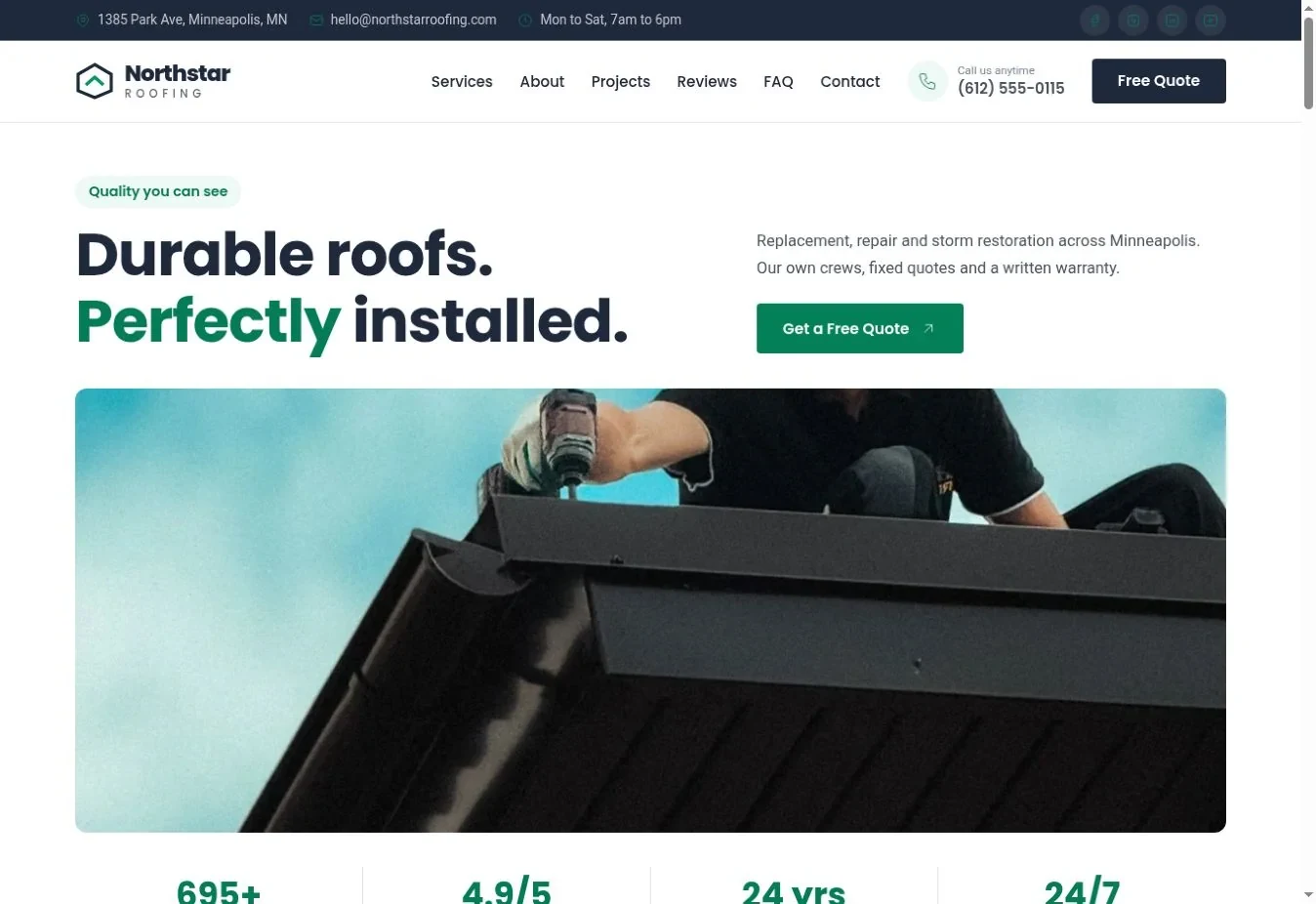
6. Ember
Best for: a business with verifiable experience. Ember centers its opening around a headline and statistics. This makes a small amount of evidence prominent, so every number needs a source. Its materials section can explain the roof systems you install. The minimal footer reduces the number of competing elements at the end of the page.
Replace every demonstration count; remove a statistic if you cannot verify it. Open the Ember preview.
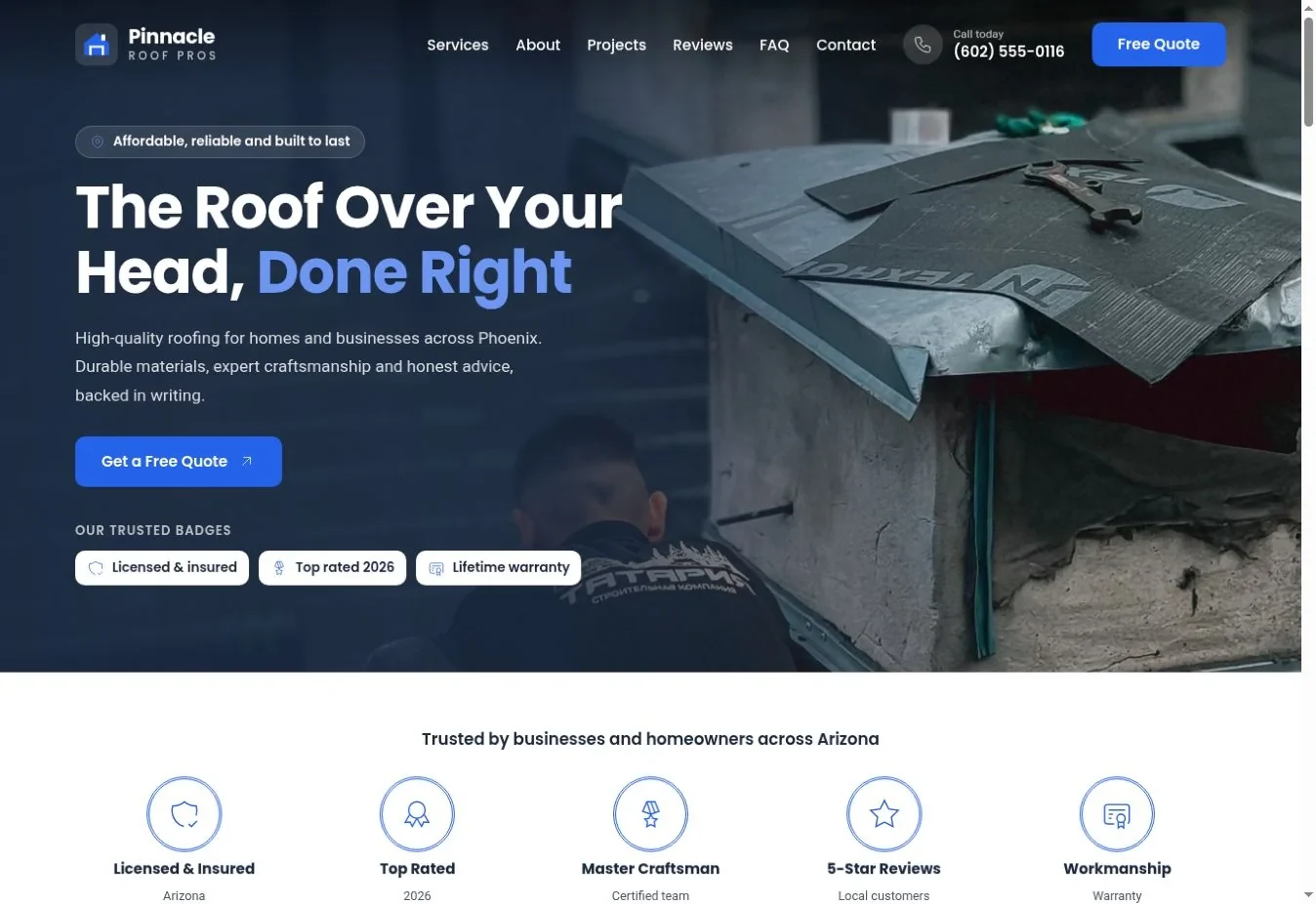
7. Ridge
Best for: a crew with strong working photographs. Ridge uses a worker-photo fade and transparent header over a dark opening. The design places the people doing the job close to the main message. Service tabs can group several related jobs without giving every item a large card.
Use an actual team image where possible and keep faces clear of text overlays. Open the Ridge preview.
8. Canyon
Best for: a business that leads with requests. Canyon makes a booking-style block part of the hero. Its generous supporting sections include materials, a team and a slider. This suits a visitor who already knows they need help and wants to make contact quickly. It can still explain the business lower down for someone comparing providers.
Label the form as a request unless it genuinely confirms an appointment. Open the Canyon preview.
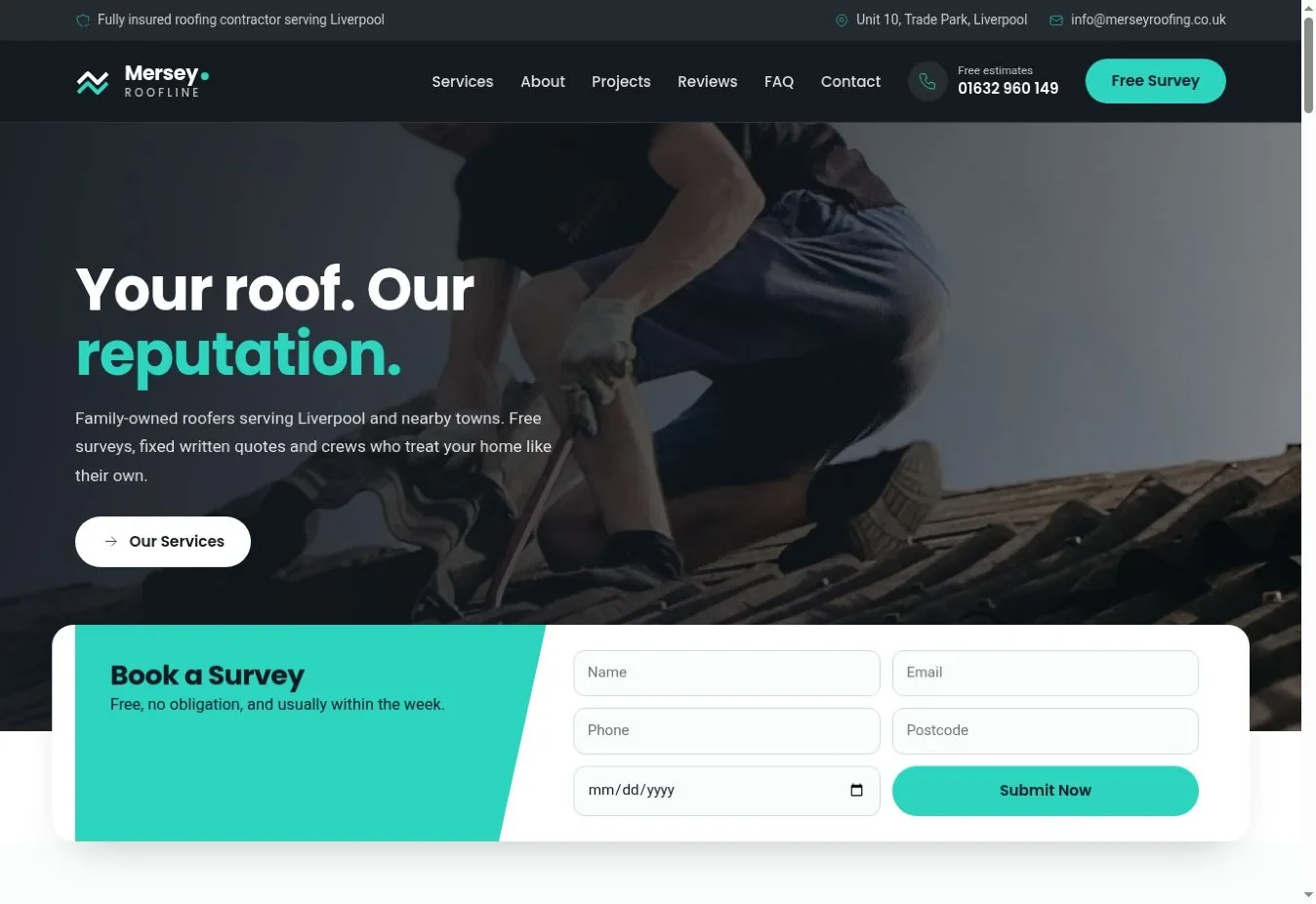
9. Atlas
Best for: a softer residential presentation. Atlas introduces a wave-shaped hero treatment with red accents and sharp details. The shape creates a visible transition without requiring a video. Its conventional top bar and white navigation make the menu easy to understand, while the closing call-to-action area gives the page a distinct finish.
Keep text out of the wave boundary and check how the transition crops on mobile. Open the Atlas preview.
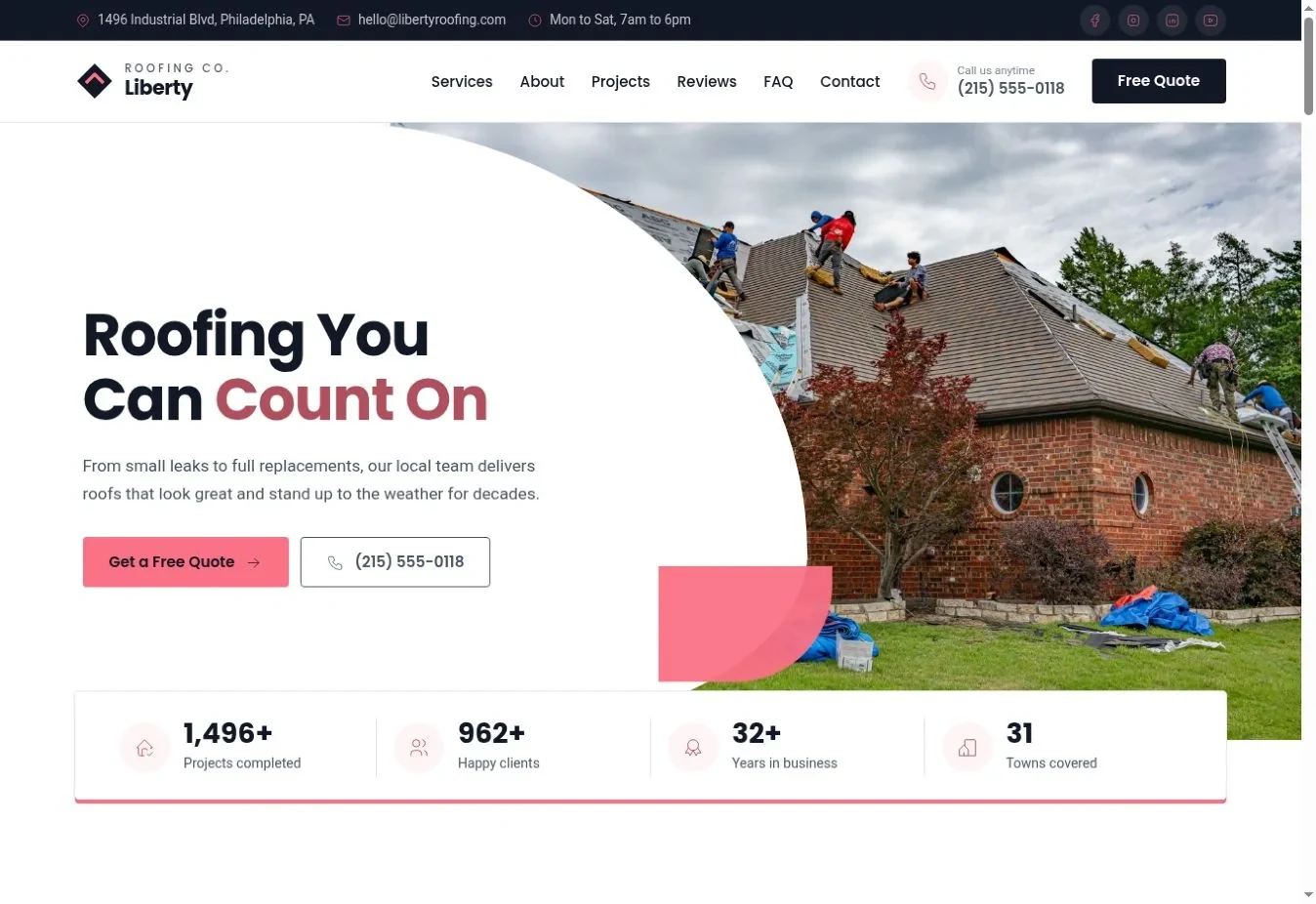
10. Beacon
Best for: architectural and premium roof work. Beacon uses an architectural photo fade with a light opening and floating navigation. It is a useful direction when the quality of the finished property is part of your story. The materials and team sections can explain how you approach those projects without relying on luxury adjectives.
Choose a completed job that you have permission to present as your own work. Open the Beacon preview.
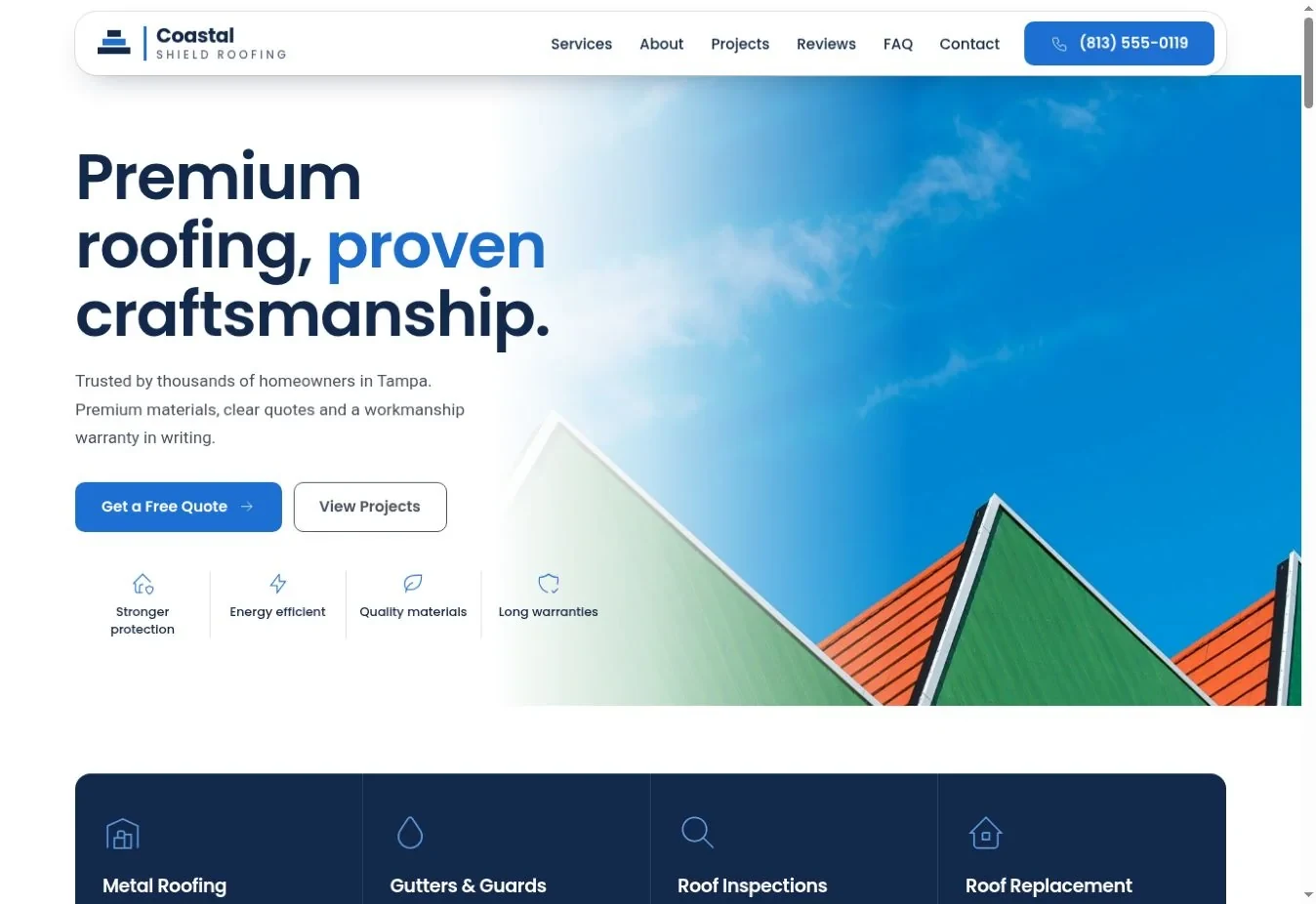
Which layouts offer a stronger visual signature?
Color panels, mosaics and overlaid photographs give these designs a more distinctive opening. Their value still depends on accurate content and a clear way to contact the business.
11. Cedar
Best for: a recognizable brand color. Cedar uses a bold color-panel split. This gives the page a strong identity even before visitors read much text. The top bar and column footer keep contact information organized. The moving strip can support a short, useful message, but it should not carry information people must chase across the screen.
Check contrast again after changing the accent to your brand color. Open the Cedar preview.
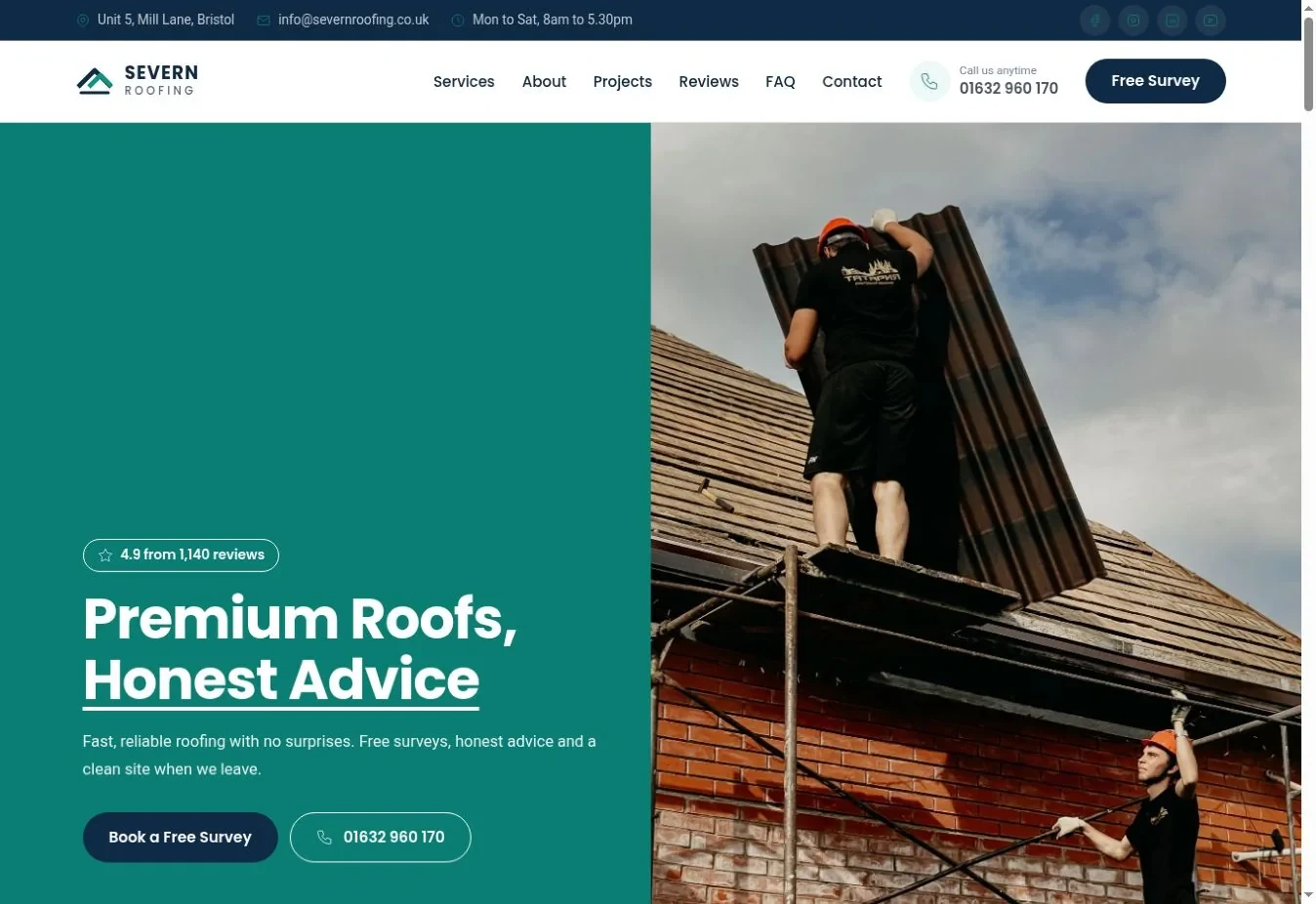
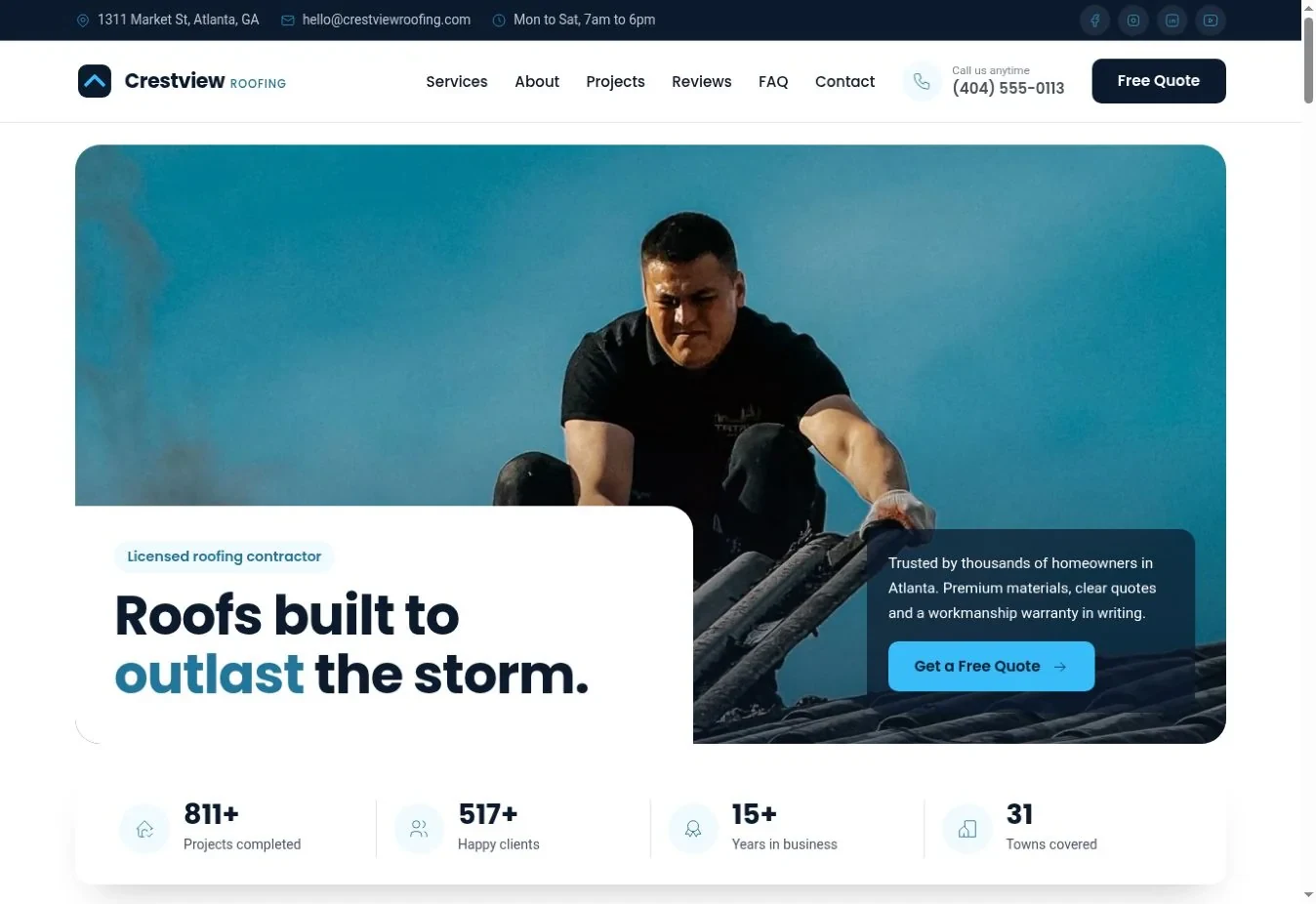
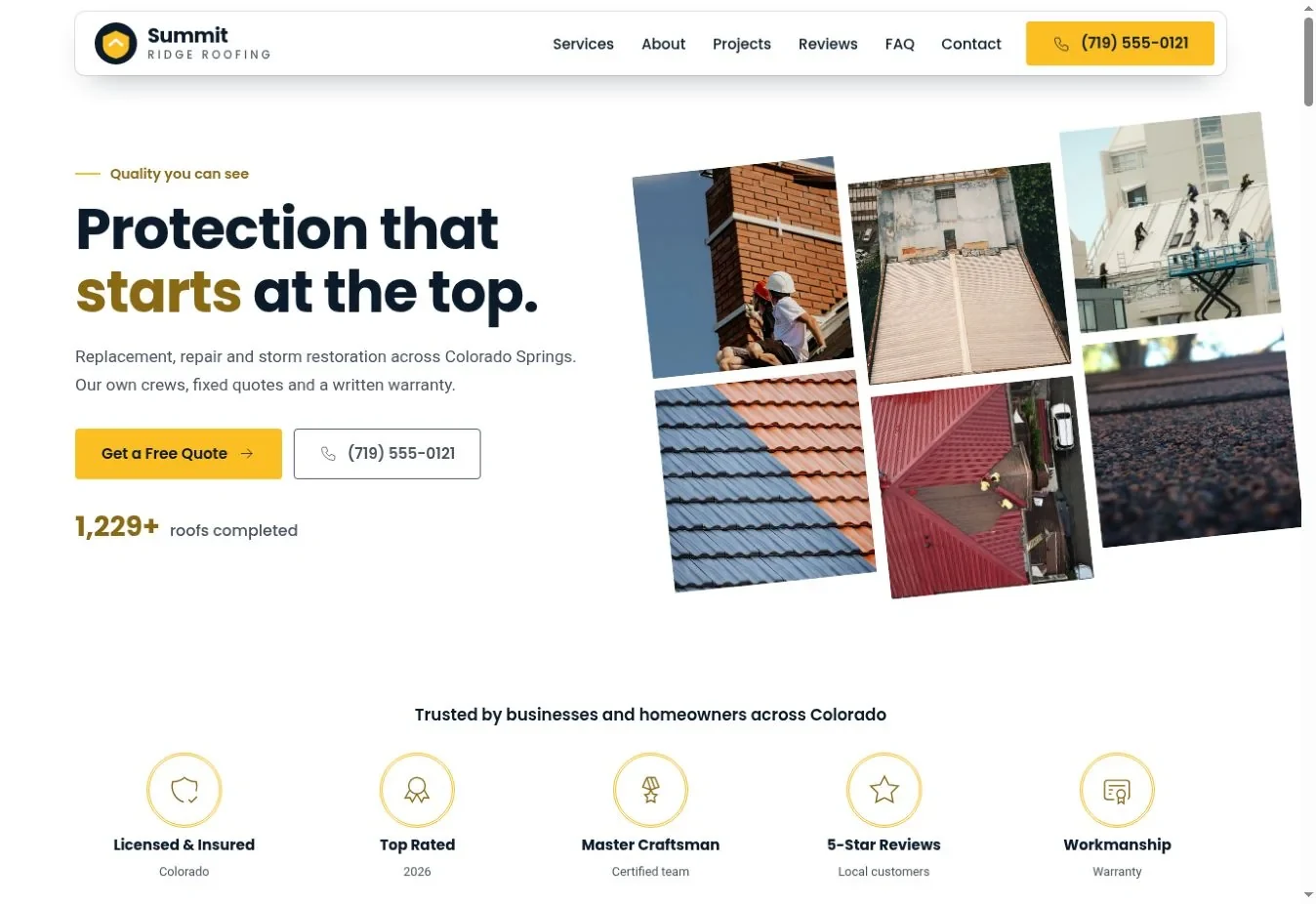
12. crest
Best for: a business with several good projects. Crest uses a photo mosaic rather than one large picture. That works best when you have a coherent set of photographs: similar lighting, clear roof subjects and a mix of useful angles. Team, materials and trust sections help the page explain the work behind the images.
Use different genuine projects or viewpoints rather than repeating one stock roof crop. Open the Crest preview.
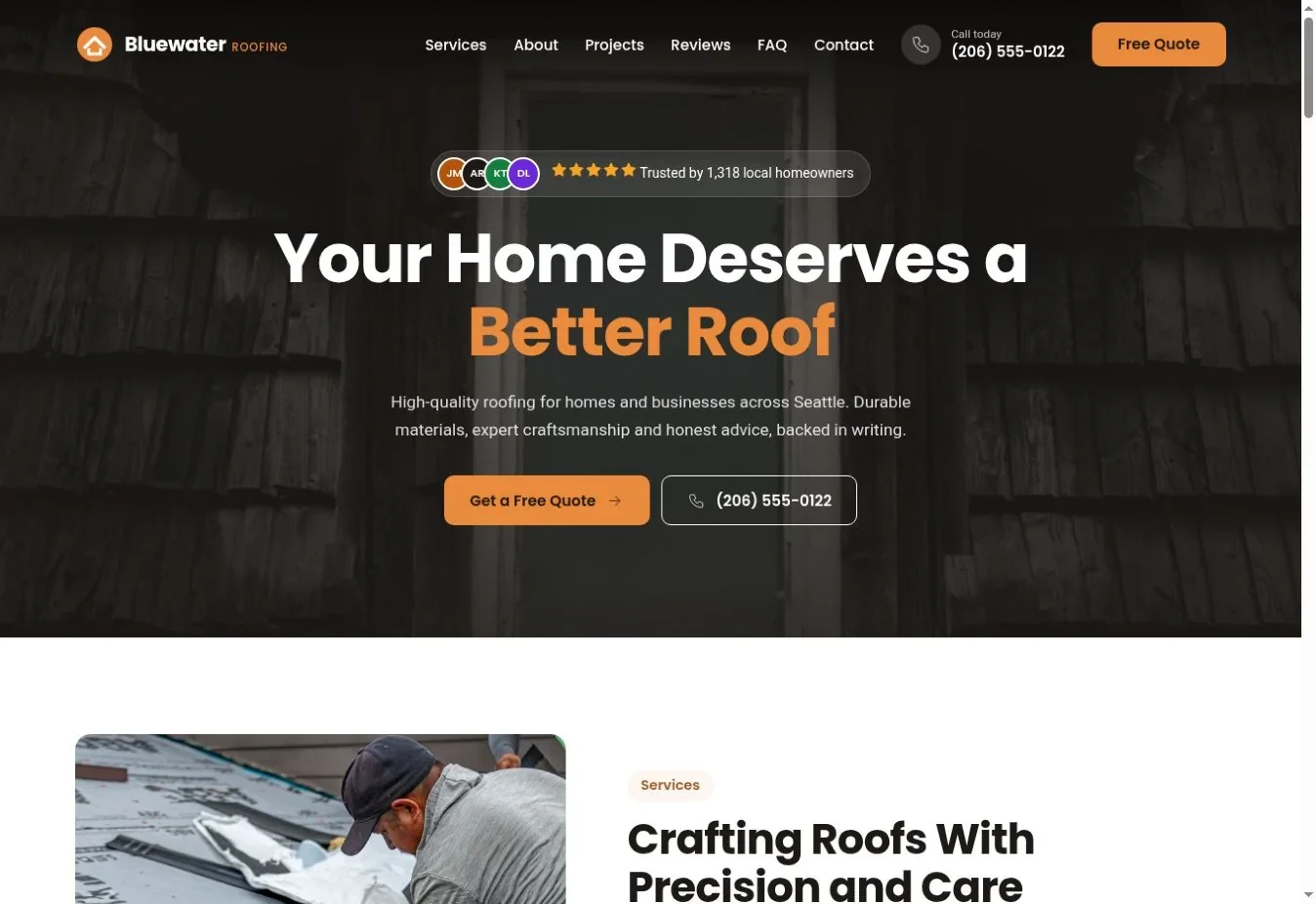
13. Delta
Best for: a dramatic, photo-led opening. Delta centers text over a dark photographic hero. Its transparent navigation keeps the top visually unified. The materials section and slider provide room for detail after the short opening. The design depends on readable text, so an attractive photograph still needs enough dark space behind the message.
Test the headline over the brightest part of the selected image. Open the Delta preview.
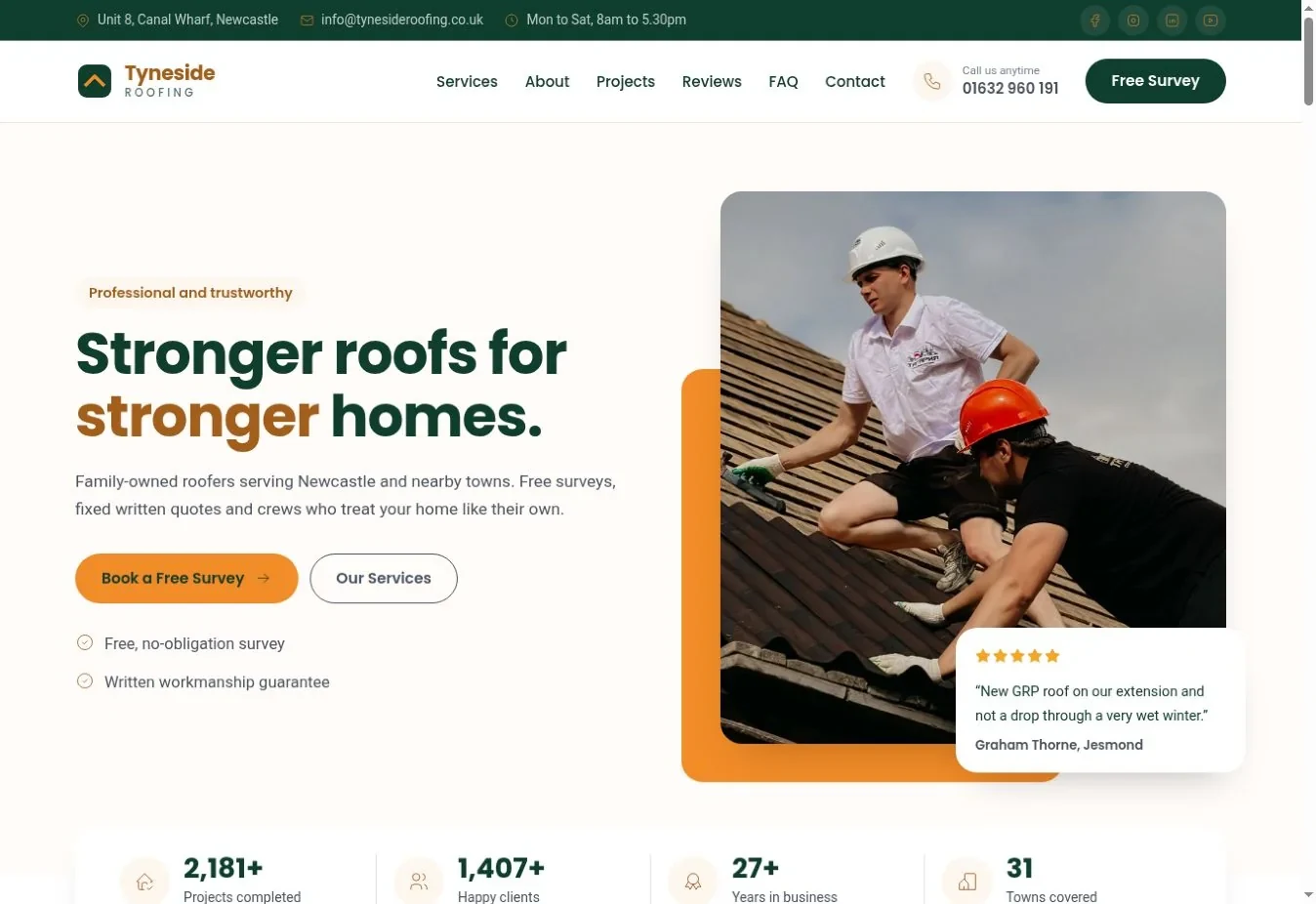
14. echo
Best for: a business with strong customer feedback. Echo combines a framed photo with a review-focused opening. The framing helps a photograph look intentional instead of filling the entire screen. A genuine short review can support the message, but the design should not turn an unverified demo quote into the main sales argument.
If you do not have permission to use a review, replace that element with a factual project note. Open the Echo preview.
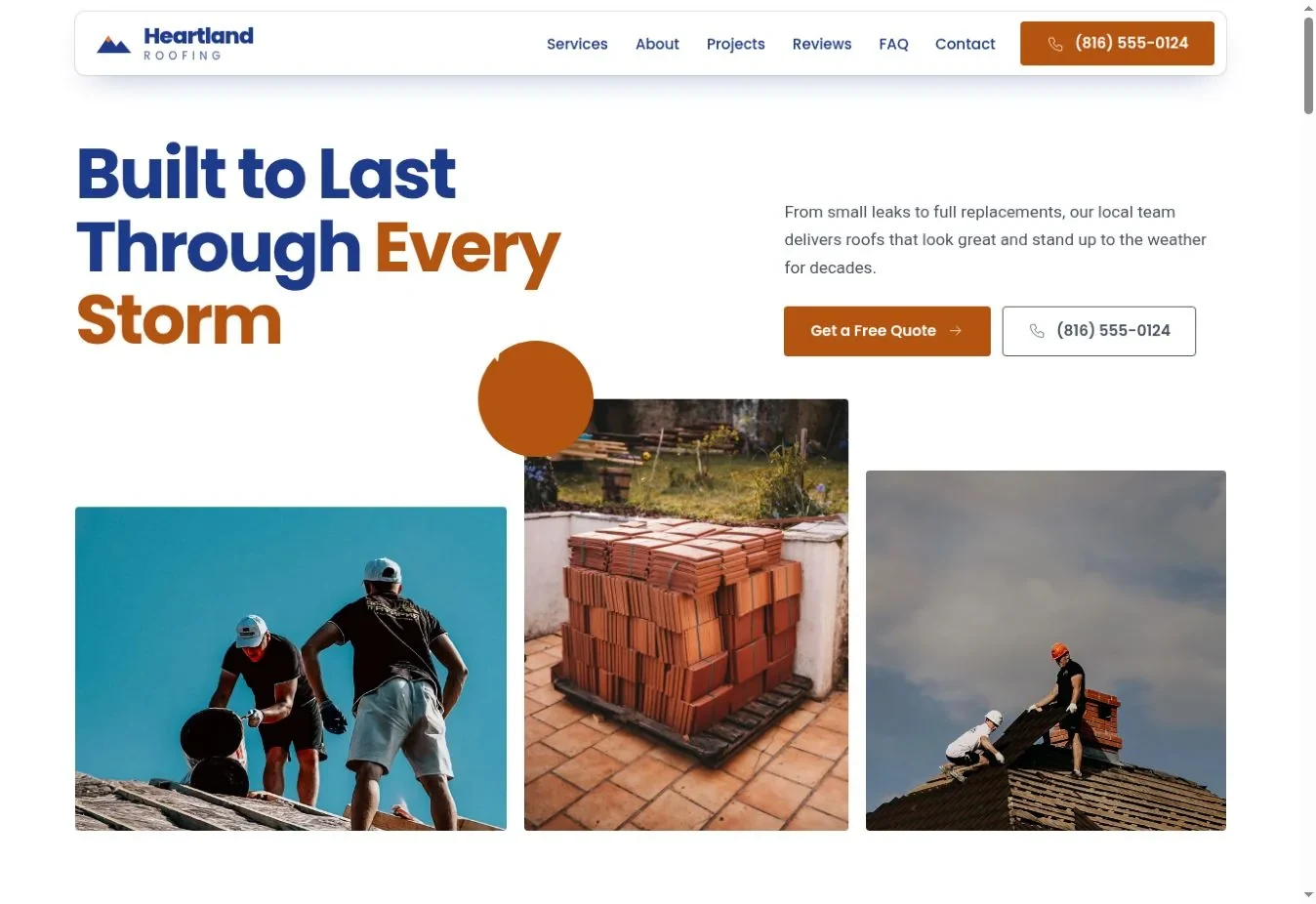
15. falcon
Best for: a service-led business with personality. Falcon uses a badge detail alongside a light hero and floating header. Its service tabs and team section support a more detailed account of the business. The motion should remain secondary to the service description; a badge is not a substitute for readable information.
Use a short factual badge label and confirm reduced-motion behavior in the preview. Open the Falcon preview.
16. forge
Best for: a different balance of copy and imagery. Forge mirrors the badge-led composition and pairs it with a more conventional top bar. The slider and team section create several opportunities to show actual people and work. A light-card footer contrasts with the dark-column alternatives.
Judge the whole page, not only which side the opening photograph occupies. Open the Forge preview.
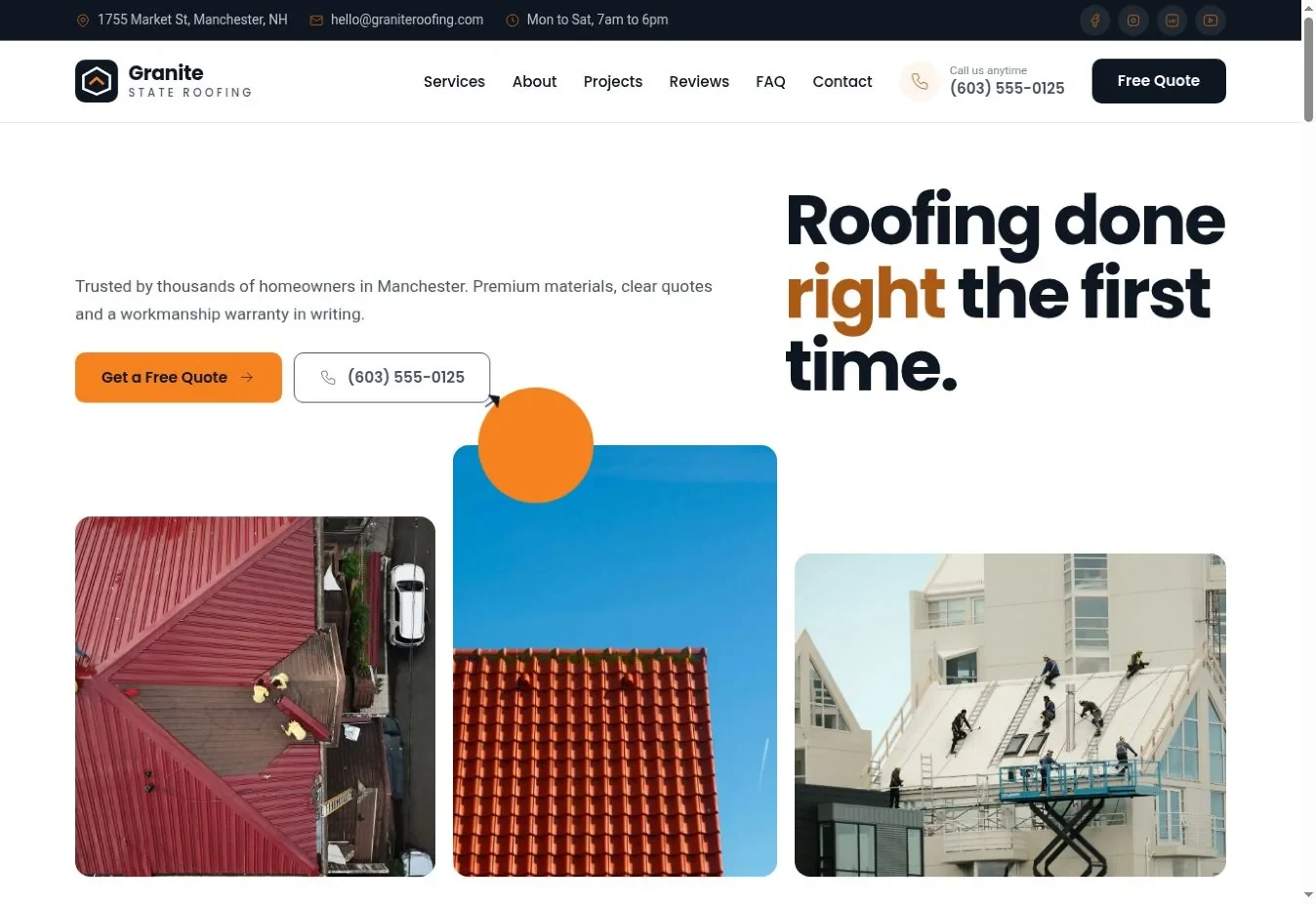
17. Glacier
Best for: a quieter photo-and-proof layout. Glacier mirrors the framed-photo-and-review treatment. The lighter opening can suit a business that wants a restrained first impression while retaining a strong final action area. The materials section explains the roof systems you offer.
Keep the testimonial concise and preserve a link or attribution to its genuine source. Open the Glacier preview.
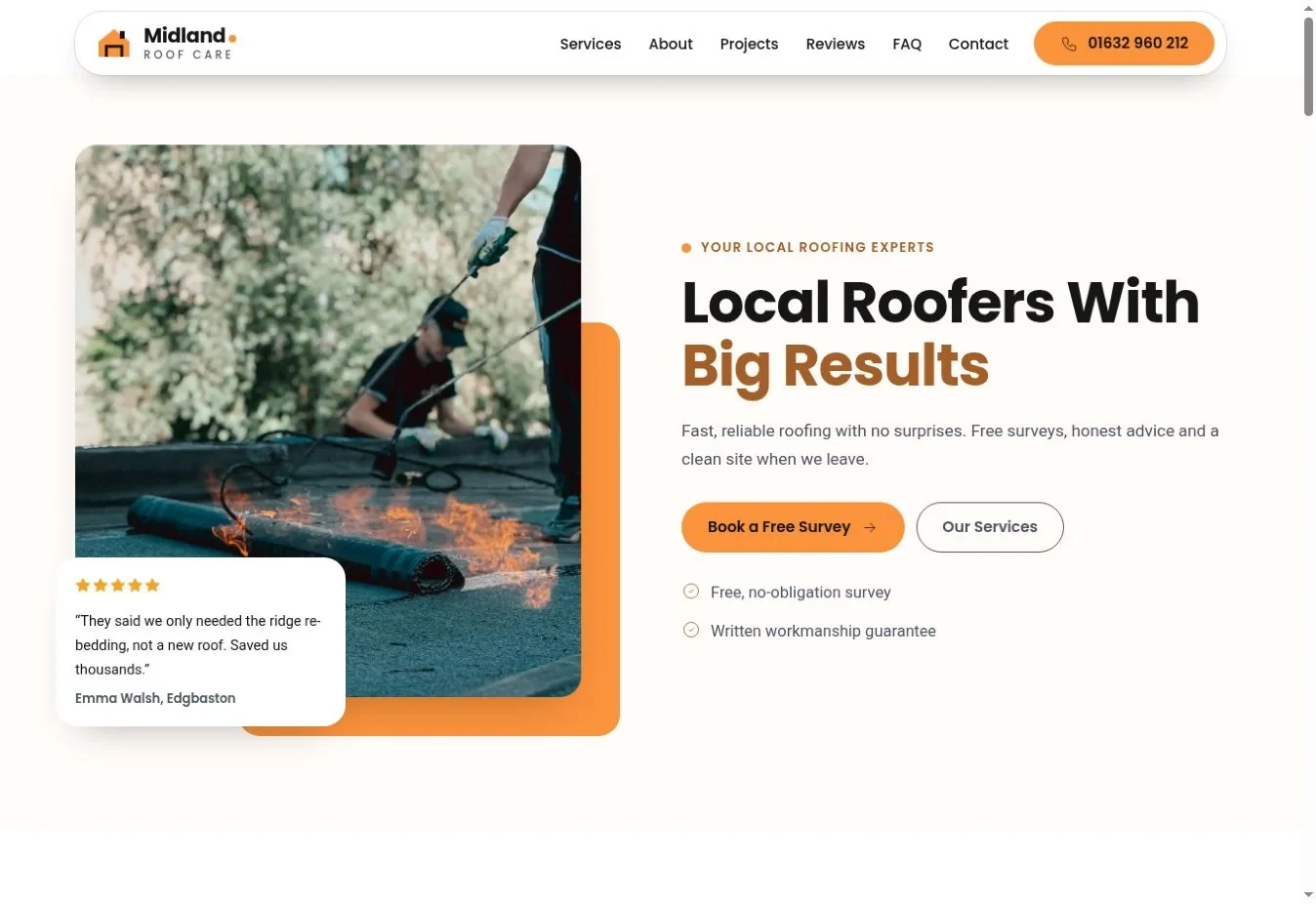
18. haven
Best for: a direct message over a large image. Haven takes the dark overlay composition and aligns the message to the left. That can make a longer but still concise service statement easier to scan. Team, materials and trust sections offer places for evidence after the visual introduction.
Keep the image subject away from the headline and primary button. Open the Haven preview.
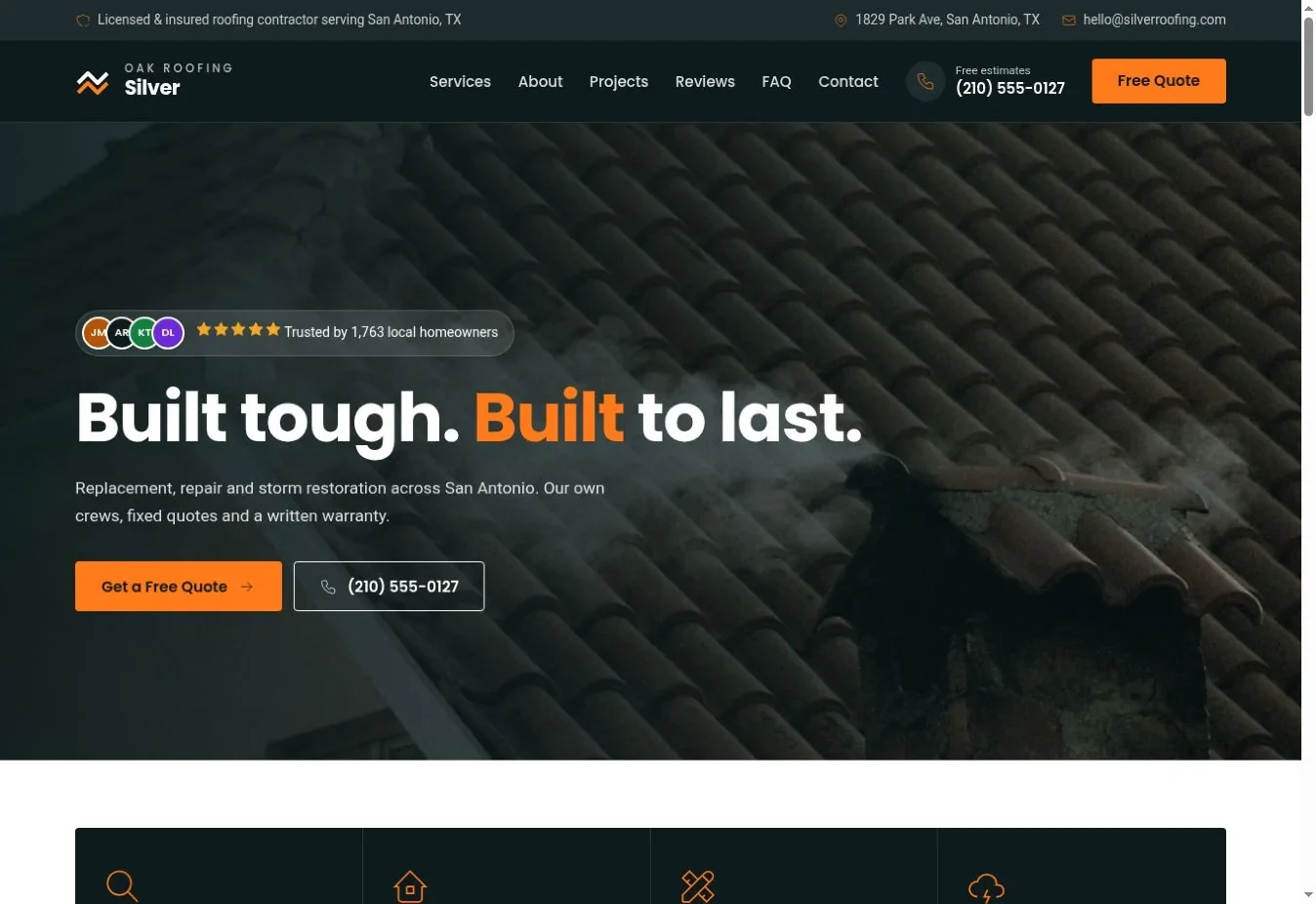
19. horizon
Best for: a project gallery with editorial rhythm. Horizon mirrors the photo-mosaic approach and uses a standard top bar. It is a practical direction when you want several images in the opening but prefer straightforward navigation. The team section connects roof photographs to the people doing the work.
Check the mosaic at a narrow width so each image remains useful rather than becoming a tiny decoration. Open the Horizon preview.
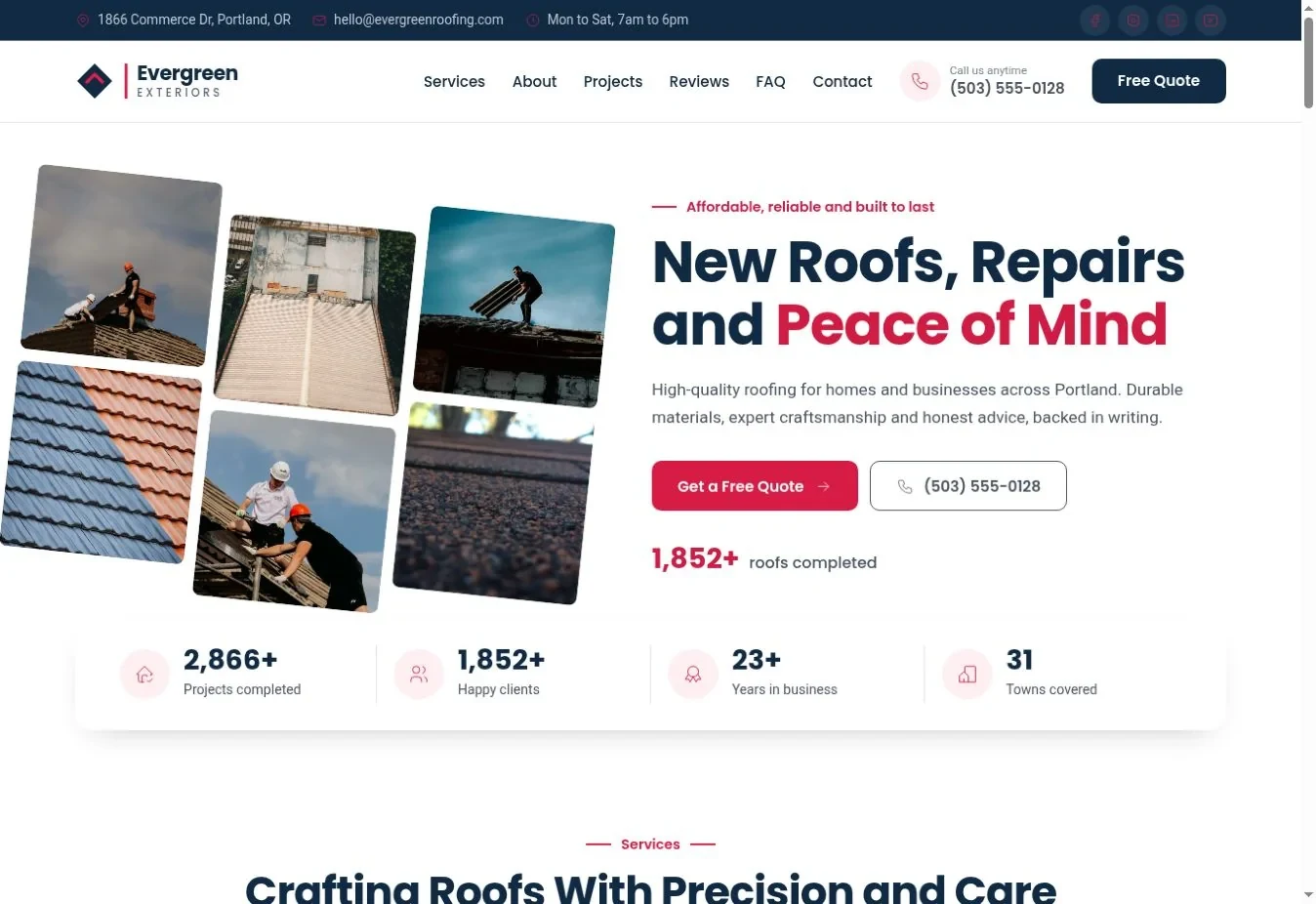
20. Ironwood
Best for: a brand that needs a clear visual signature. Ironwood mirrors the color-panel split and combines it with a floating header and light-card footer. It can make a compact message look deliberate without needing a large video or numerous effects. Trust elements can support the strong color if they contain actual business facts.
Keep the palette restrained and test all button labels after personalization. Open the Ironwood preview.
What should you change after choosing a template?
Replace the business information first, then check the design with your real content. A short demo company name or perfectly cropped photo can hide problems that appear when your own details are added.
- Set the business name, logo, phone and destination email.
- Replace services, opening hours and location information with accurate details.
- Remove or replace every sample review, statistic, badge and project claim.
- Add photographs you own or have permission to use, then inspect their crops.
- Test menus, contact links and the inquiry form on the final hosting.
The template editing guide explains the working sequence. Recheck contrast when you change brand colors. Google's Web Vitals guidance is also useful when checking whether new images have made the page slow or unstable.
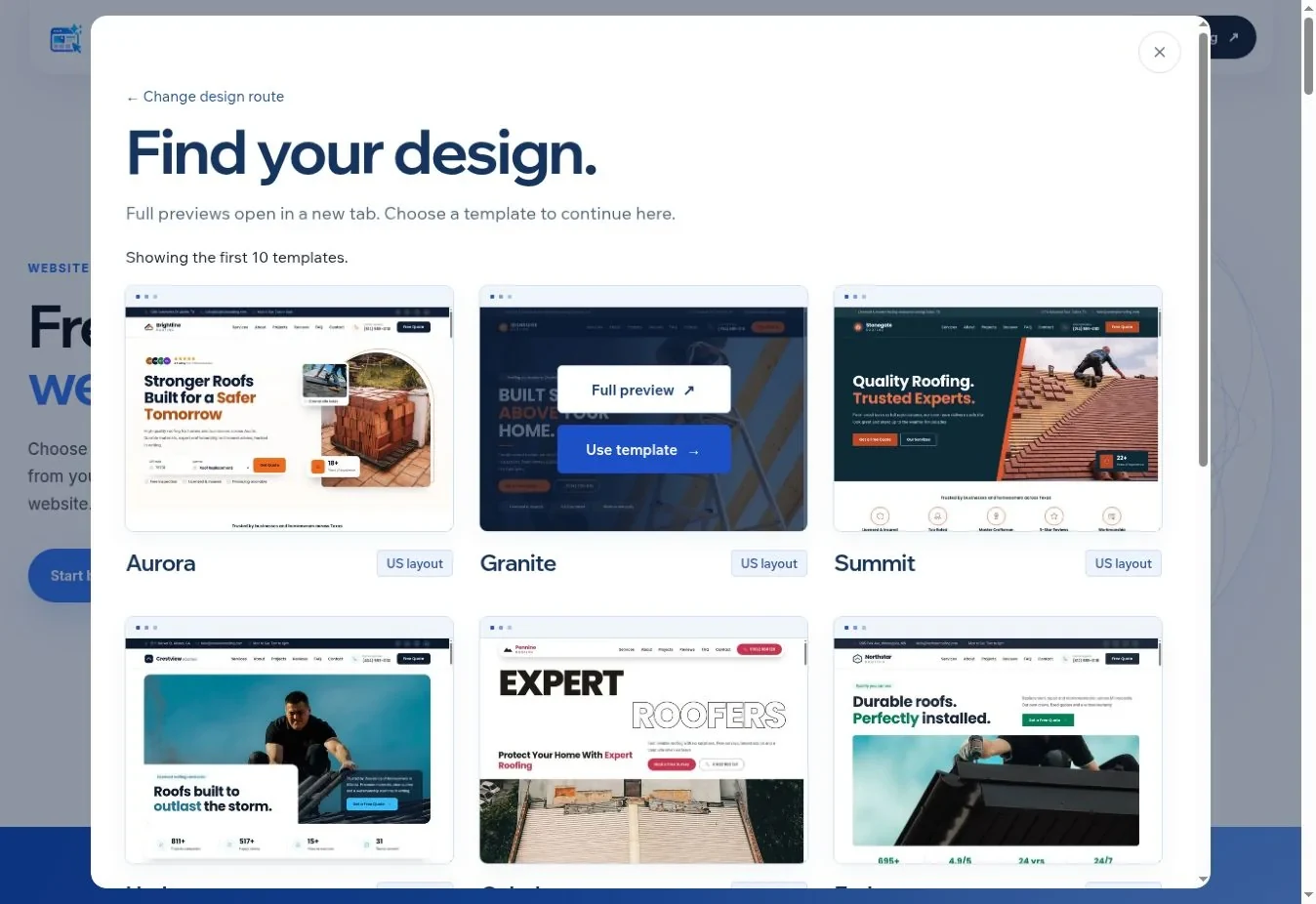
You can start with any roofing template, keep its composition and change the content. Template use, editing and download are free; domains, hosting and optional assistance are separate.
Which example should you open first?
Pick two layouts with different structures and compare them using your own headline and best project photo. Explore the roofing generator, read the website cost guide, and use the pre-launch checklist when your chosen page is ready.
Frequently asked questions
Are these real roofing companies?
No. These are WebsiteGeneratorHub template demonstrations with example business details. They illustrate layouts you can edit and download. Do not assume a sample name, rating, license number or project belongs to your company. Replace those details with verifiable information before using the website publicly.
Which template has the highest conversion rate?
No conversion ranking has been measured for this gallery. A screenshot cannot establish how many inquiries a page will receive. Choose a layout that makes your services and contact route clear, then measure actual inquiries after launch. Traffic quality and how promptly you respond also affect the result.
Can I use the same template as another roofing company?
Yes, subject to the template terms. Your own photographs, copy, logo and accurate local information will make the result more specific to your business. A shared template is not an exclusivity promise.
Should I choose the design with the most sections?
Choose the design that supports the information you can usefully provide. More sections can help when each answers a real customer question, but empty or repetitive blocks make a page harder to read. Start with services, evidence and contact details, then add material, team or process content when it adds value.
Can I change the template after adding my details?
You can use the builder's template selection and editing workflow, but review the result after any switch. Different layouts use photographs and text in different ways. Check the headline length, contact details, sample content and mobile layout again rather than assuming every change transfers perfectly without review.
Sources & further reading
Sources checked .
- WebsiteGeneratorHub FAQ (opens in a new tab)websitegeneratorhub.com
- Google Web Vitals (opens in a new tab)web.dev
- W3C accessibility easy checks (opens in a new tab)www.w3.org
- W3C WCAG 2.2: Contrast (Minimum) (opens in a new tab)www.w3.org
- WebAIM Million 2026 (opens in a new tab)webaim.org